Turn PNG, JPG, WebP, or SVG Into a PDF in Your Browser
Package screenshots, photos, and vector diagrams into shareable PDFs locally — with honest notes on page sizing, SVG rasterization, and why nothing uploads.
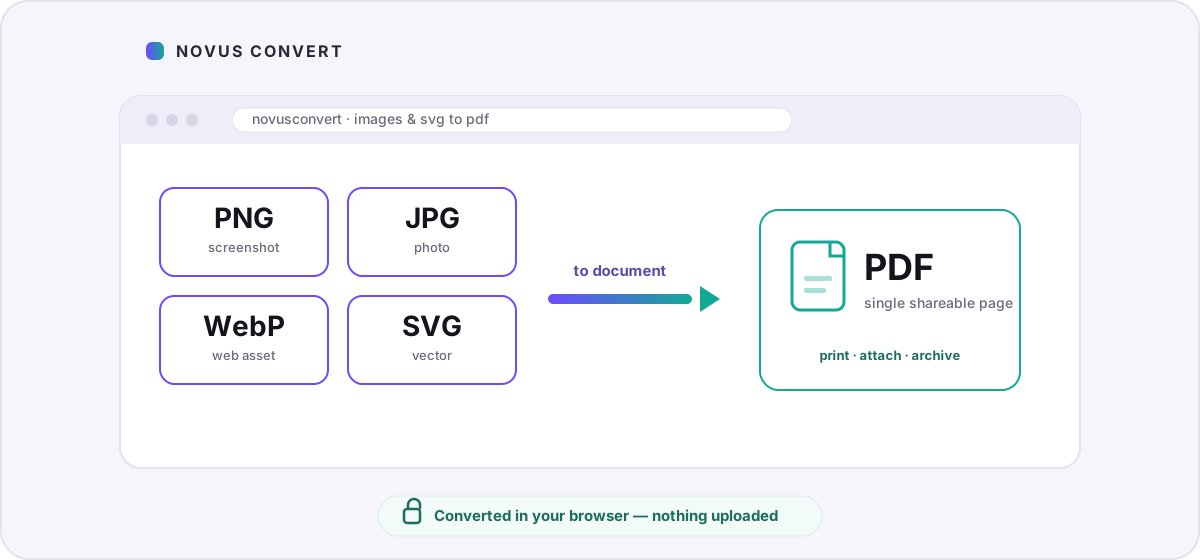
A screenshot, a receipt photo, a logo in SVG, or a WebP asset from a design handoff often needs to become a PDF before someone else will accept it — for email, for a form upload, for printing, or for a packet that has to travel as one file. You do not need a desktop layout app for that job. Novus Convert can wrap common images and SVG into a PDF entirely in your browser, so the picture never sits on a conversion server on its way to becoming a document.
When an image should become a PDF
PDF is a container for pages. Putting an image into a PDF freezes how it will print and how most recipients will open it: one page, one view, no dependence on whether their mail client renders WebP, and no risk that an SVG is treated as untrusted XML. That is why people reach for PDF when the deliverable is “attach this,” “print this,” or “file this,” rather than “edit the pixels again later.”
- Use PDF when the recipient expects a document — forms, tickets, scanned-style packets, and print queues all prefer it.
- Keep the original PNG, JPG, WebP, or SVG as your master if you still need to crop, retouch, or scale the artwork later.
- Prefer a raster (PNG/JPG/WebP) when the source is a photograph or screenshot; prefer SVG when the source is a clean logo or diagram and you understand it will be drawn flat into the page.
Choosing PNG, JPG, WebP, or SVG as the source
Not every picture is the same kind of object. A PNG screenshot keeps sharp UI edges and optional transparency. A JPG photo is already lossy and usually smaller for continuous-tone scenes. WebP may arrive from a modern export pipeline that already optimized for the web. SVG is instructions for drawing shapes, not a grid of pixels — which is why it is ideal for logos and diagrams until the moment you need a PDF that every printer and every portal will accept without SVG support.
If your phone handed you a HEIC, convert that to JPG or PNG first with the HEIC routes on the site, then wrap the result as PDF. Camera RAW files follow the same idea: demosaic to a raster you can share, then package. Trying to treat every exotic container as a direct PDF input is less important than a clean two-step path that stays local the whole way.
Convert an image to PDF locally
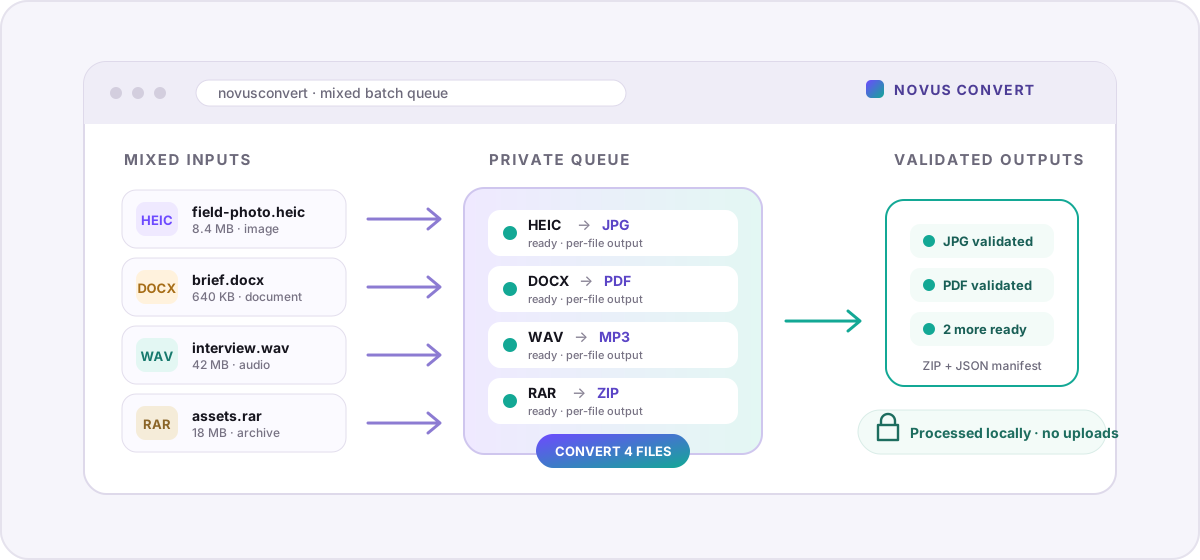
Start from a dedicated route such as PNG to PDF, JPG to PDF, WebP to PDF, or SVG to PDF, or drop mixed files into the general batch converter and pick PDF per file. The steps are the same either way:
- Open the route that matches your input, or use the batch converter when you have several images with different targets.
- Drop your file onto the page. Nothing uploads — the decoder reads the bytes in your browser’s memory.
- Confirm PDF as the output. Each queued file has its own picker, so one screenshot can become a PDF while another becomes WebP in the same pass.
- Let the local engine build the page. Large images take longer on slower devices because the work happens on your CPU, not on a remote farm.
- Download once the export validates. Novus Convert checks a real PDF signature before the download unlocks, so a broken file does not slip through as “done.”
What the PDF actually contains
For PNG, JPG, and WebP, the converter places the decoded picture onto a PDF page sized to the image. You get a single-page document that opens everywhere a PDF opens. Metadata that lived only in the image container is not the focus of this path — the job is a shareable page, not a bit-identical archive of every EXIF field. If you need a smaller file after packaging, run the PDF through the local compression tools afterward, or compress the image first and then convert.
SVG is different in one important way: browsers draw vectors to pixels before the PDF writer embeds them. That means the PDF holds a rasterized view of the diagram at the resolution the engine used, not an editable SVG tree inside the PDF. Logos and simple icons usually look sharp; extremely large or filter-heavy SVGs can be slower to rasterize and may benefit from exporting a PNG at the size you actually need first.
Page size, resolution, and printing expectations
Because the PDF page is sized to the image, a 4000-pixel-wide photo becomes a wide page, and a tall phone screenshot becomes a tall page. That is usually what you want for on-screen reading. For physical print, check whether the destination assumes letter or A4: a very large image may print with small margins or force the printer driver to scale. If you need a standard office page with the picture centered, a layout app still wins — this converter’s job is honest packaging, not desktop publishing.
Resolution matters most when the PDF will be zoomed or printed large. Starting from a crisp PNG or a high-quality JPG gives the embed more to work with. Upscaling a tiny icon into a full-page PDF will not invent detail; it will only enlarge soft pixels. For logos, begin with SVG or a large PNG export from your design tool before you convert.
Batching screenshots into documents
When you have a folder of captures, queue them together and set each output to PDF. Novus Convert does not silently merge every image into one multi-page file in this path: each input becomes its own PDF so you can rename, reorder, or discard pages outside the converter. If you later need one packet, combine those PDFs in a dedicated PDF tool. For format background on the container itself, see the PDF format guide.
If privacy is why you are reading this, the deeper explanation of upload-based converters sits in where your files really go. For choosing between image formats before you package them, start with how the major image formats compare.
Frequently asked questions
Will my PNG look identical inside the PDF?
Visually, yes for ordinary screenshots and photos: the image is embedded on a page sized to match it. You should not expect a round-trip that reconstructs the original PNG byte-for-byte from the PDF, and SVG is rasterized before embedding, so it is no longer an editable vector tree inside the PDF.
Can I convert several images into one multi-page PDF in one click?
Each image becomes its own PDF in the current local path so you keep control over naming and ordering. Convert the set, then combine the resulting PDFs in a PDF organizer if you need a single packet.
Does SVG stay vector inside the PDF?
No. Novus Convert draws the SVG in the browser and embeds the resulting bitmap into the PDF for broad compatibility. That is reliable for logos and diagrams; it is not a substitute for a design tool that writes native PDF vectors.
Are my images uploaded when I convert to PDF?
No. Decoding and PDF writing run in your browser’s memory. Nothing is transmitted to a Novus Convert server for the conversion itself, which matters when the image is a receipt, a passport scan, or a screenshot of private UI.
What image types can become PDF?
Common browser-friendly rasters such as PNG, JPG, and WebP, plus SVG through the local rasterize-then-embed path. For HEIC phone photos, convert to JPG or PNG first, then to PDF, using the HEIC routes already on the site.