Convert PDF to Images (and Images to PDF) Privately in Your Browser
Turn PDF pages into PNG or JPG snapshots, or combine images into a PDF: all processed locally with pdf.js and pdf-lib, with nothing uploaded.
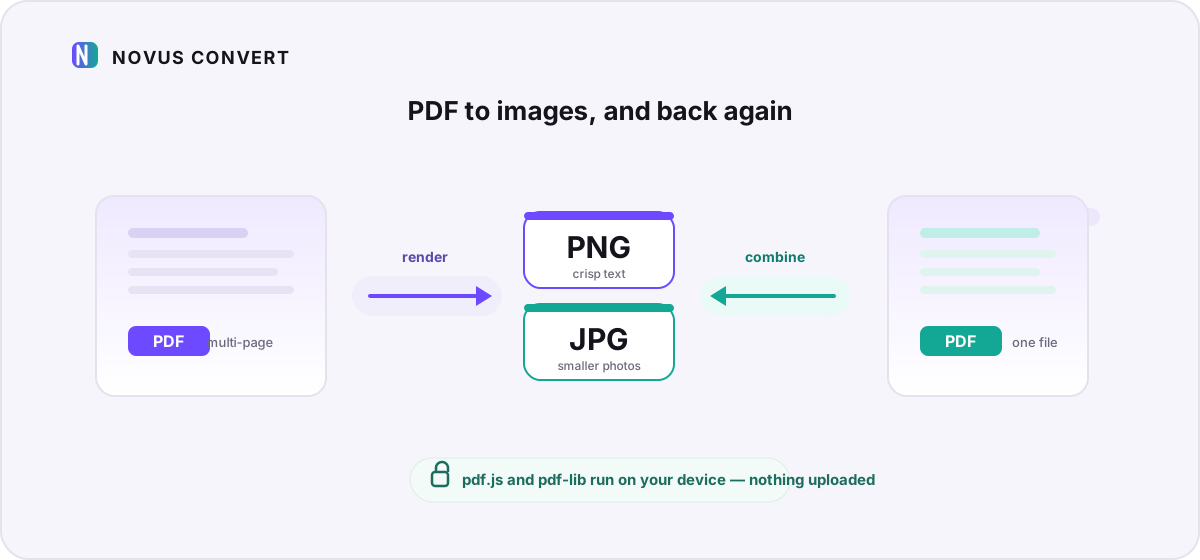
There are two moments where PDFs and images meet, and most people run into both eventually. The first is needing a picture of a page. A single slide to drop into a deck, a receipt to attach to an expense form, or a diagram to paste into chat, where a full PDF would be overkill. The second is the reverse: you have a handful of scans or screenshots and want them bundled into one tidy PDF you can send as a single file. This guide covers both directions, and the important part is that neither one involves an upload.
Two directions, one private workflow#
Going from PDF to images is a rasterization job. Novus Convert uses pdf.js, the same rendering engine that draws PDFs inside Firefox, to paint each page onto a canvas in your browser, then encodes that canvas to PNG or JPG. You get one image per page, exactly as the page looks when rendered, which you can start doing on the PDF to PNG converter.
Going the other way, from images to a PDF, is an assembly job. Here Novus Convert uses pdf-lib to embed each image as its own page and write out a single document, no re-compression of the picture data beyond what the format needs. You can do that on the JPG to PDF converter, which also accepts PNG. Both tools run start to finish on your own machine.
Turning PDF pages into PNG or JPG#
The mechanics are simple, but a couple of choices shape the result. The first is which pages you want: a whole document or just a few. The second is the output format, because PNG and JPG make very different trade-offs for a page image.
- Open the PDF to PNG route and drop your PDF onto the zone (or tap to browse).
- Let pdf.js render the pages. Every page is drawn locally to a canvas, so nothing is sent anywhere. The work is done by your CPU, not a connection.
- Choose your output format per file: PNG for crisp text and line art, or JPG when the page is mostly photographic and you want a smaller file.
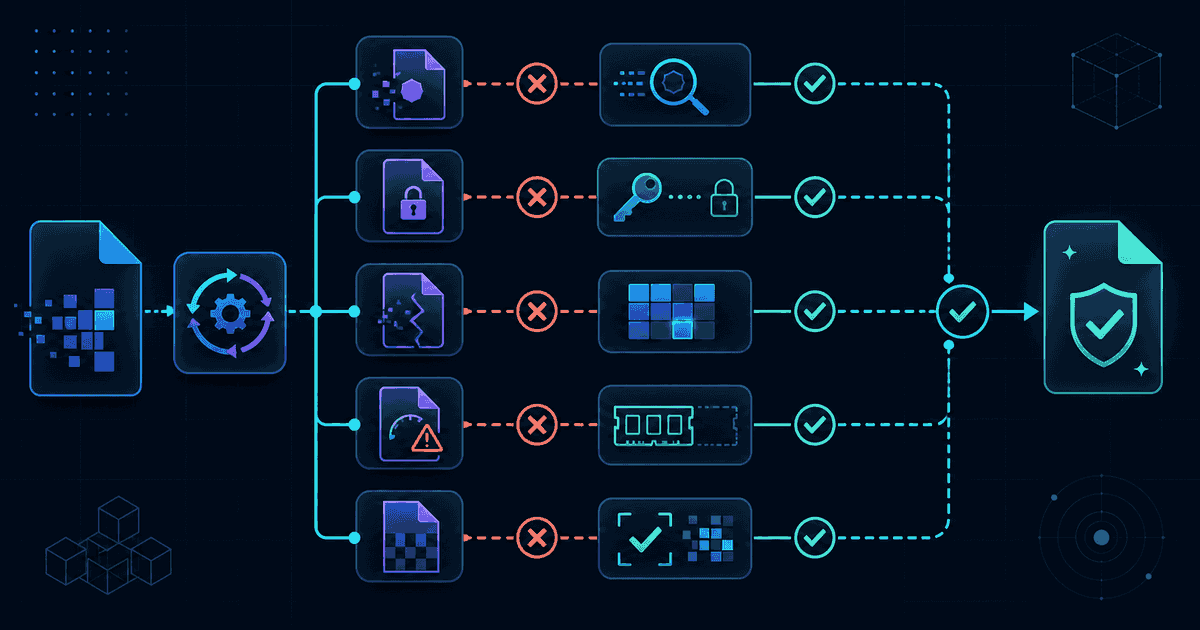
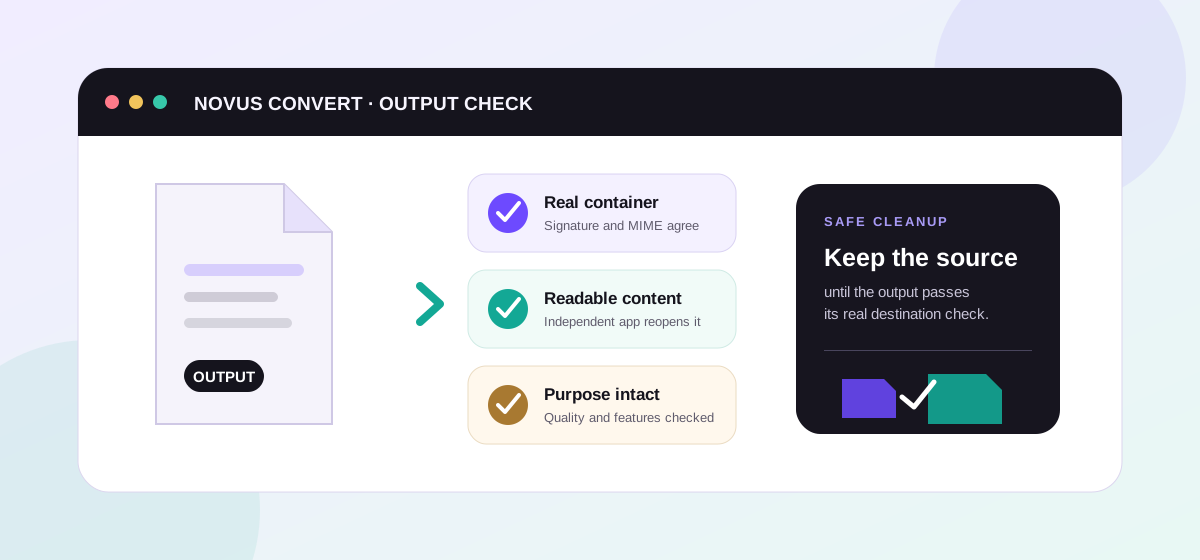
- Download each page image once it validates. Novus Convert checks the real PNG or JPEG signature before the download button unlocks, so a half-rendered page never slips through.
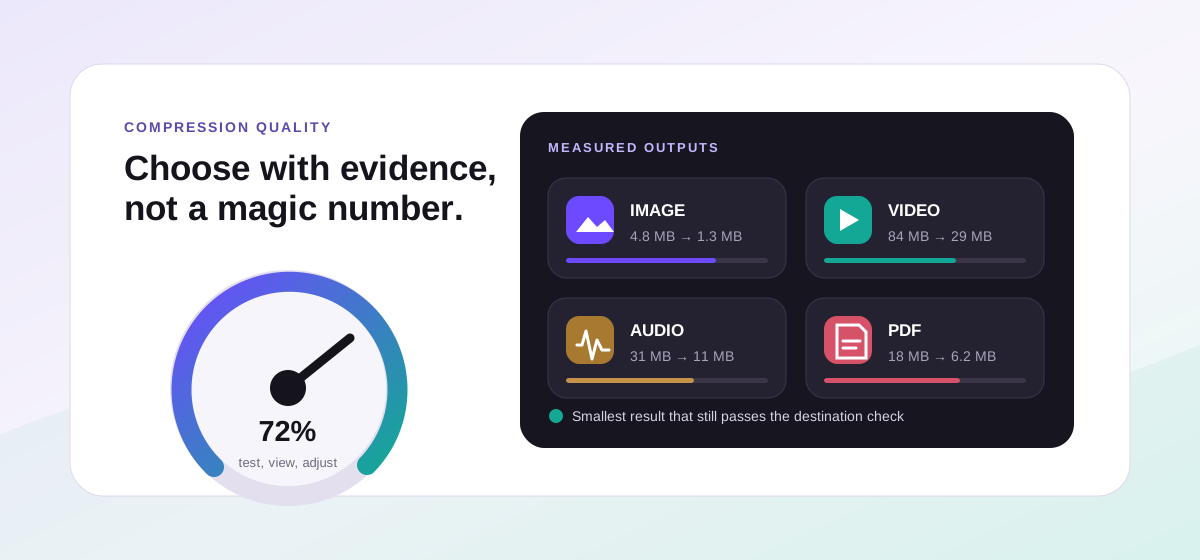
On the format choice: PNG is lossless, which makes it the safe default for pages built from text, tables, and sharp diagrams. The edges stay clean and there is no compression fuzz around the letters. JPG is lossy but produces much smaller files, so it wins for pages that are essentially full-bleed photographs. If a page mixes fine print with a big photo, PNG keeps the text legible at the cost of size. When the resulting images end up larger than you would like, you can shrink them afterward with the local compression tools and watch the savings before you commit.
Combining images into a single PDF#
The reverse trip is just as private. Drop your JPGs or PNGs onto the JPG to PDF converter, arrange them in the order you want, and pdf-lib stitches them into one document with a page per image. This is the quick way to turn a pile of phone photos of a paper form, or a set of screenshots, into something you can email as a single attachment instead of a dozen loose files.
- Order matters: the sequence you add the images in becomes the page order of the PDF, so line them up before you export.
- Mixed formats are fine. You can combine JPGs and PNGs in the same document, and each is embedded in whatever way preserves it best.
- Every page inherits the size of its source image, so scans that were captured at the same dimensions produce an evenly sized document.
One honest limitation to keep in mind: bundling images into a PDF does not perform OCR. The photos of your form become pages you can view and print, but the words inside them stay as pixels. The PDF is not searchable text. If searchability is the goal, you need a dedicated OCR step, which is a different job from this assembly. For everything else (sending, archiving, printing), an image PDF is exactly right, and if it comes out heavier than you expected because the source photos were large, run it through compression to bring the size down.
A last note on what these tools can and cannot open. Conversion works on DRM-free, unencrypted PDFs. If a file is password-protected or restricted, you will need to unlock it with the password first, in an app that has permission to do so, before rendering its pages. To go deeper on the format itself, how a PDF is put together and why it renders the same everywhere, see the PDF format guide.
Troubleshooting
No. Novus Convert renders your PDF with pdf.js directly in your browser, so every page is drawn and encoded in your own device's memory. The file is never transmitted to a server, which is why the conversion works even with your network disconnected after the page loads.
Use PNG for pages made of text, tables, and diagrams. It is lossless, so the edges stay crisp and there is no compression fuzz. Use JPG for pages that are mostly photographs, where its much smaller file size outweighs the slight quality loss. When a page mixes both, PNG keeps the fine print readable.
No. Turning a page into an image rasterizes it into pixels, so the text becomes part of the picture rather than selectable, searchable characters. If you need the words back, keep the original PDF; the image is a faithful snapshot of how the page looks, not a copy of its underlying text.
Frequently asked questions
Is my PDF uploaded when I convert it to images?
No. Novus Convert renders your PDF with pdf.js directly in your browser, so every page is drawn and encoded in your own device's memory. The file is never transmitted to a server, which is why the conversion works even with your network disconnected after the page loads.
Should I export pages as PNG or JPG?
Use PNG for pages made of text, tables, and diagrams. It is lossless, so the edges stay crisp and there is no compression fuzz. Use JPG for pages that are mostly photographs, where its much smaller file size outweighs the slight quality loss. When a page mixes both, PNG keeps the fine print readable.
Will the text in my page images still be selectable?
No. Turning a page into an image rasterizes it into pixels, so the text becomes part of the picture rather than selectable, searchable characters. If you need the words back, keep the original PDF; the image is a faithful snapshot of how the page looks, not a copy of its underlying text.
Can I combine several images into one PDF?
Yes. Add your JPGs or PNGs to the JPG to PDF converter, put them in the order you want, and pdf-lib assembles them into a single document with one page per image: all locally. It does not run OCR, so the pages are viewable and printable but not searchable text.
Can I convert a password-protected PDF?
Conversion works on DRM-free, unencrypted PDFs. If your file is password-protected or otherwise restricted, unlock it with the password first in an app that is permitted to do so, then convert the unlocked copy in your browser.