How to Convert MOV to MP4 in Your Browser (iPhone Video, No Upload)
Make iPhone .mov clips play everywhere by converting them to .mp4 locally with a WebAssembly FFmpeg engine: private, watermark-free, and validated.
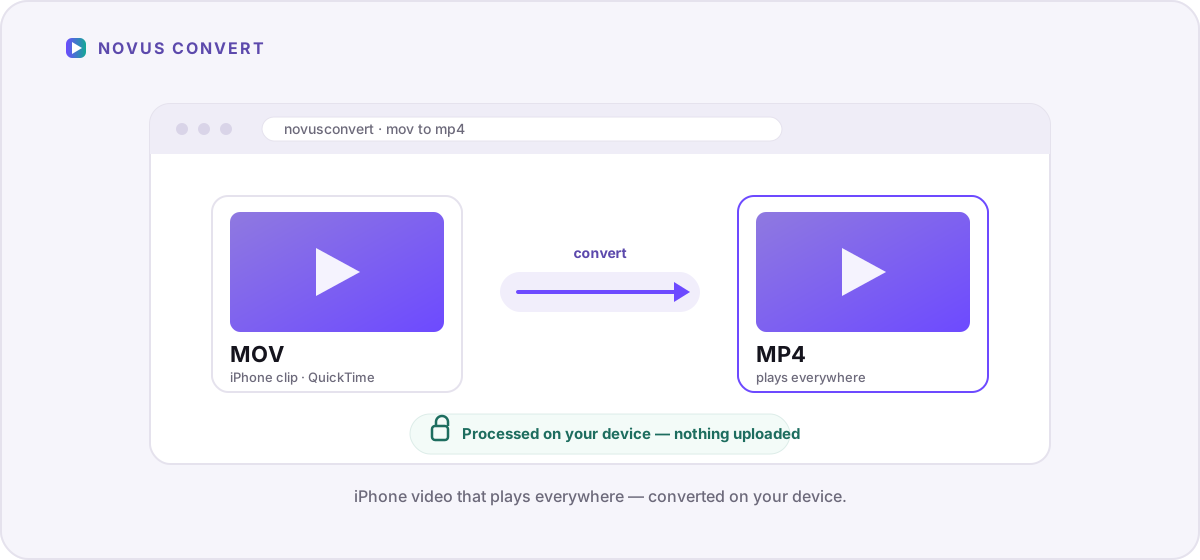
You shot a video on your iPhone, sent it to a friend on Windows or Android, and got back the digital shrug: “this file won’t play.” The clip is a .mov, and while the video itself is perfectly good, the QuickTime container it lives in is not welcome everywhere. Converting it to .mp4 fixes that, and you can do the whole thing inside your browser, so a personal video never leaves your device.
Why does my iPhone record .mov instead of .mp4?#
.mov is Apple’s QuickTime container, and it is the format the Camera app has written since the earliest iPhones. Under the hood a .mov usually holds one of two video codecs, H.264 or the newer HEVC (H.265), alongside AAC audio. .mp4 is the near-universal container, and it is no coincidence that the two feel so similar: the MP4 specification was derived directly from QuickTime’s file format in the early 2000s. In many cases a .mov and a .mp4 carry byte-for-byte identical video and audio; only the wrapper around them differs.
The difference that actually bites you is reach. Inside Apple’s world (Photos, iMovie, Safari, AirDrop) .mov plays flawlessly. Step outside it and things get patchy: some Windows builds need extra codecs, plenty of Android apps refuse it, older editors choke on it, and countless upload forms accept only .mp4. If you want a clip that opens on essentially any device, browser, editor, or social platform without a second thought, MP4 is the safe default. Our MP4 format guide covers why it became the lingua franca of digital video.
The fast way: convert MOV to MP4 in your browser#
Novus Convert runs a full build of FFmpeg compiled to WebAssembly: the same engine professionals drive from the command line, except here it executes inside the browser tab. Nothing uploads, there is no size cap handed down by someone else’s server, and no watermark is stamped on the way out. Here is the whole flow on our MOV to MP4 converter:
- Open the MOV to MP4 route, or drop your clip into the general batch converter and pick MP4 as the output.
- Drag your .mov files onto the drop zone, or tap to browse. You can queue several at once.
- Confirm the output is set to MP4. Each file gets its own picker, so a mixed batch can go to different targets.
- Let the local engine work. A progress bar tracks each clip; because nothing uploads, speed depends on your device and the length of the video, not your connection.
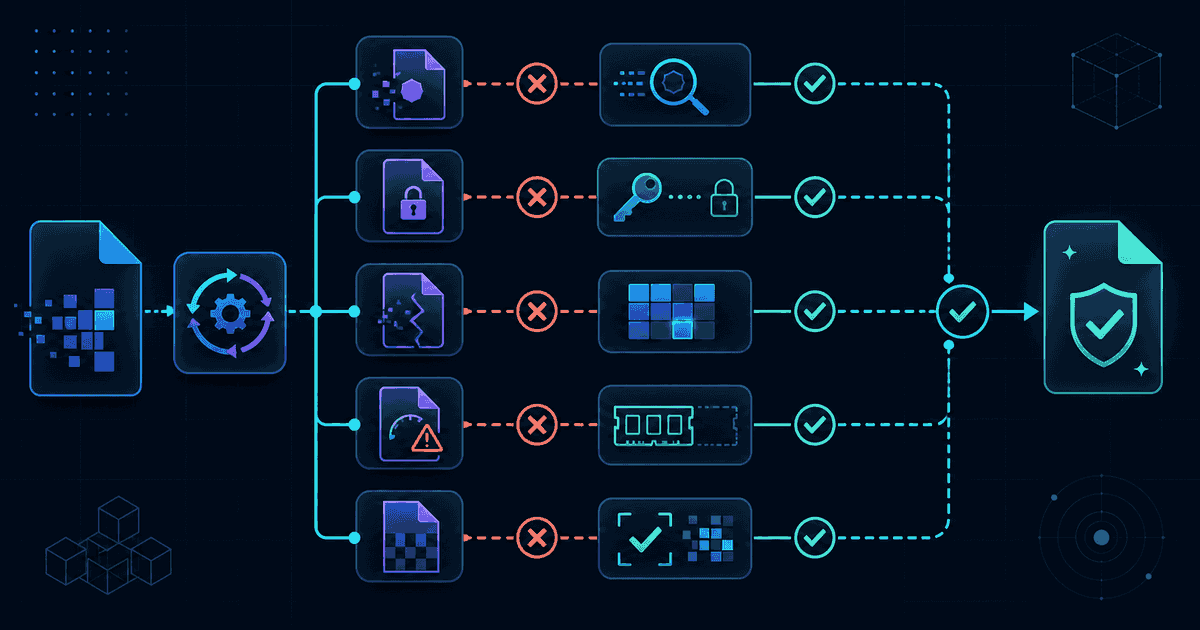
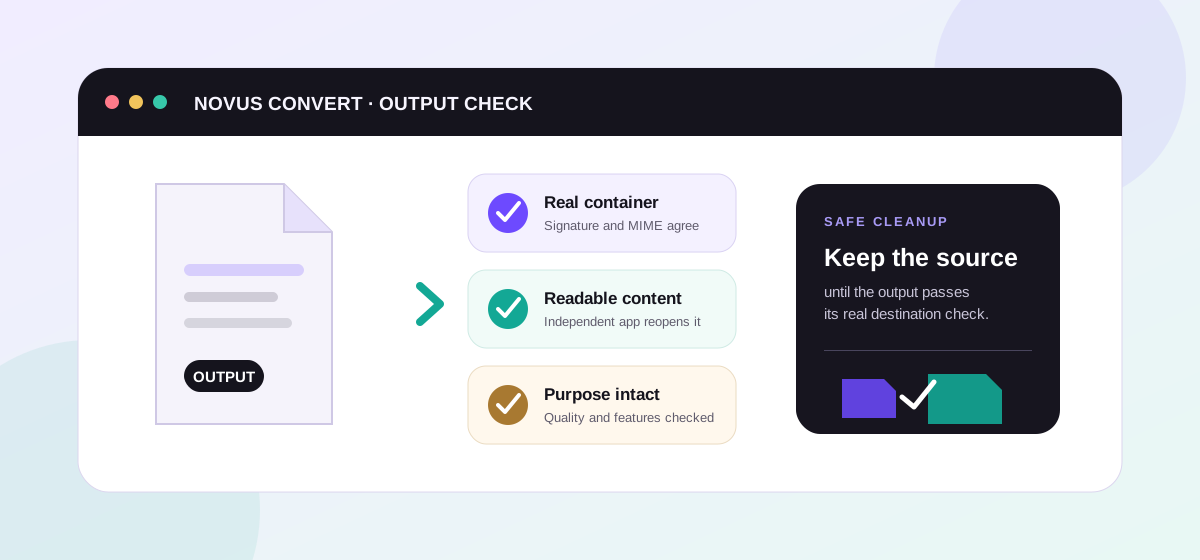
- Download each validated MP4. Novus Convert checks the real MP4 container signature before it unlocks the download button, so you never save a half-written file.
Remux vs. re-encode: why some conversions finish almost instantly#
Here is the detail most converters quietly skip over. When your .mov already contains H.264 video and AAC audio, which is exactly what an iPhone set to “Most Compatible” records, turning it into an .mp4 can be a remux: the existing video and audio streams are copied, untouched, into a fresh MP4 wrapper. Nothing is re-compressed, so there is no quality loss at all, and the job finishes in a fraction of the time a full re-encode would take.
The other case is HEVC. iPhones left on “High Efficiency” record H.265, which an .mp4 can technically hold, but not every player and upload form accepts HEVC-in-MP4. To get a clip that truly plays everywhere, you may need to re-encode the video to H.264, and that step is lossy, because it decodes each frame and compresses it again. The change is usually invisible for everyday footage at a sensible quality setting, but if you plan to edit heavily or archive the video, keep the original .mov as your master and treat the .mp4 as an export.
Size, audio, and the honest limits#
A container swap does not shrink a file: an H.264 .mov and the .mp4 you remux from it are practically the same size. If your goal is a smaller clip for email or a messaging app, convert first and then run the result through our local compression tools, where you can lower the bitrate and watch the estimated savings before you commit. Our companion guide on compressing video in your browser walks through which levers to pull, and in what order, to cut size without visibly hurting quality.
A few honest caveats to close on. Converting cannot add detail that was never captured, so a re-encode is at best a faithful copy, never an upgrade. Very long or high-resolution clips lean on your device’s memory, since your own hardware is doing the encoding rather than a remote farm. And Novus Convert only handles video you can already open. It will not strip copy protection from DRM-locked files. Within those limits, though, you end up with a clean, private .mp4 that plays wherever you send it, with nothing ever leaving your browser.
Troubleshooting
It depends entirely on how the tool works. Any converter that uploads your clip to a server exposes it, along with its embedded capture date and often GPS location, to that server. A browser-based converter like Novus Convert reads and rewrites the file in your own device’s memory, so nothing is transmitted and there is nothing to leak.
Not always. If your .mov holds H.264 video and AAC audio, the streams can be copied straight into an MP4 container with no re-encoding and no quality loss at all. Only when the source is HEVC and you need H.264 for wider compatibility does a lossy re-encode happen, and at a reasonable quality setting the difference is usually imperceptible. Keep the original if you plan to edit or archive.
MOV is Apple’s QuickTime container, and support for it outside the Apple ecosystem is uneven. Some Windows editions lack the needed codec, and many Android apps and web upload forms simply reject the extension. Converting to MP4, which nearly everything accepts, makes the video open without extra software.
Frequently asked questions
Is it safe to convert MOV to MP4 online?
It depends entirely on how the tool works. Any converter that uploads your clip to a server exposes it, along with its embedded capture date and often GPS location, to that server. A browser-based converter like Novus Convert reads and rewrites the file in your own device’s memory, so nothing is transmitted and there is nothing to leak.
Will converting MOV to MP4 reduce the quality of my video?
Not always. If your .mov holds H.264 video and AAC audio, the streams can be copied straight into an MP4 container with no re-encoding and no quality loss at all. Only when the source is HEVC and you need H.264 for wider compatibility does a lossy re-encode happen, and at a reasonable quality setting the difference is usually imperceptible. Keep the original if you plan to edit or archive.
Why won’t my .mov file play on Windows or Android?
MOV is Apple’s QuickTime container, and support for it outside the Apple ecosystem is uneven. Some Windows editions lack the needed codec, and many Android apps and web upload forms simply reject the extension. Converting to MP4, which nearly everything accepts, makes the video open without extra software.
Is MP4 actually better than MOV?
Not in quality. The two containers can hold identical video and audio. MP4 is simply more compatible. Inside Apple’s apps, MOV is perfectly fine; the moment you share across platforms, upload to a form, or hand a file to a non-Apple editor, MP4 is the format that just works.
Can I convert several MOV files at once?
Yes. Because there is no upload step, batch conversion is the norm. Add as many .mov clips as you like, set them to MP4, and download each one as it finishes validating. Processing speed is limited by your device and the length of the videos, not your internet connection.