Extract Audio From Video: Convert MP4 and MKV to MP3 Locally
Pull the soundtrack out of a video file into MP3 or other audio formats entirely in your browser: perfect for talks, music, and podcasts, with no upload.
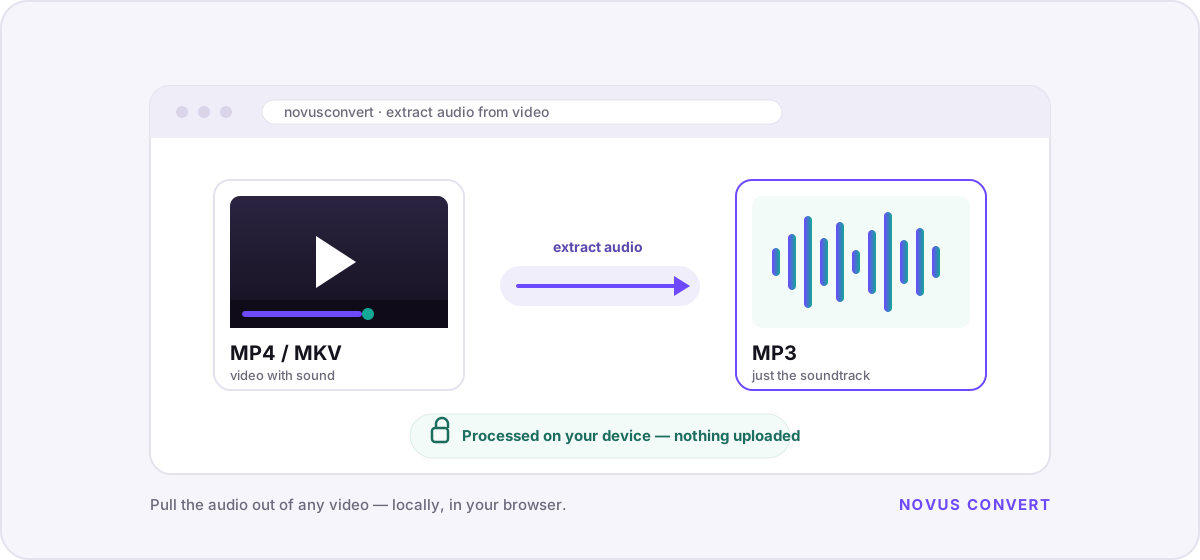
Sometimes you do not need the video at all. You need what is inside it. The audio from a conference talk you want to replay on a run. A song from a concert clip. The spoken track of a podcast you happened to record as a screen capture. Pulling that soundtrack out into an MP3 is a small, everyday task, and like everything on Novus Convert it happens entirely in your browser: the video is decoded on your own device and never uploaded anywhere.
What “extract audio” actually means#
Every video file is really a container. An MP4 or MKV is a wrapper holding separate streams stacked side by side: one for the picture, one or more for sound, sometimes subtitles or chapter markers. Extracting audio means reaching into that container, ignoring the video stream entirely, and writing the sound out as its own file. Because the picture is left untouched, the work is far lighter than a full video conversion: you are only ever processing the audio.
There are two ways that can happen, and the difference matters for quality. The first is a straight copy: if you keep the audio in whatever codec it already uses inside the video, the stream is lifted out bit-for-bit with no re-encoding: lossless and nearly instant. The second is a transcode: the audio is decoded and re-encoded into a new codec. That second path is what happens when you ask for MP3, because the track inside a typical MP4 or MKV is almost always AAC, Opus, or AC-3 rather than MP3 to begin with.
Extract audio from MP4 or MKV in your browser#
Novus Convert runs FFmpeg compiled to WebAssembly, the same engine that powers desktop media tools, right inside the page. Point it at the MP4 to MP3 converter for the most common case, or the MKV to MP3 converter if your file came from a screen recorder or a disc rip. The steps are the same either way:
- Open the converter and drop your video onto the drop zone, or add several at once from the batch converter if you have a whole folder of clips.
- Confirm the output is set to MP3. The engine reads your file’s streams and targets the audio, leaving the picture behind.
- Pick a bitrate if you want to. A higher bitrate keeps more detail; a lower one makes a smaller file. The default is a sensible middle ground.
- Let it run locally. Extraction is quick because only the audio is processed. There is no full-frame video encode to sit through.
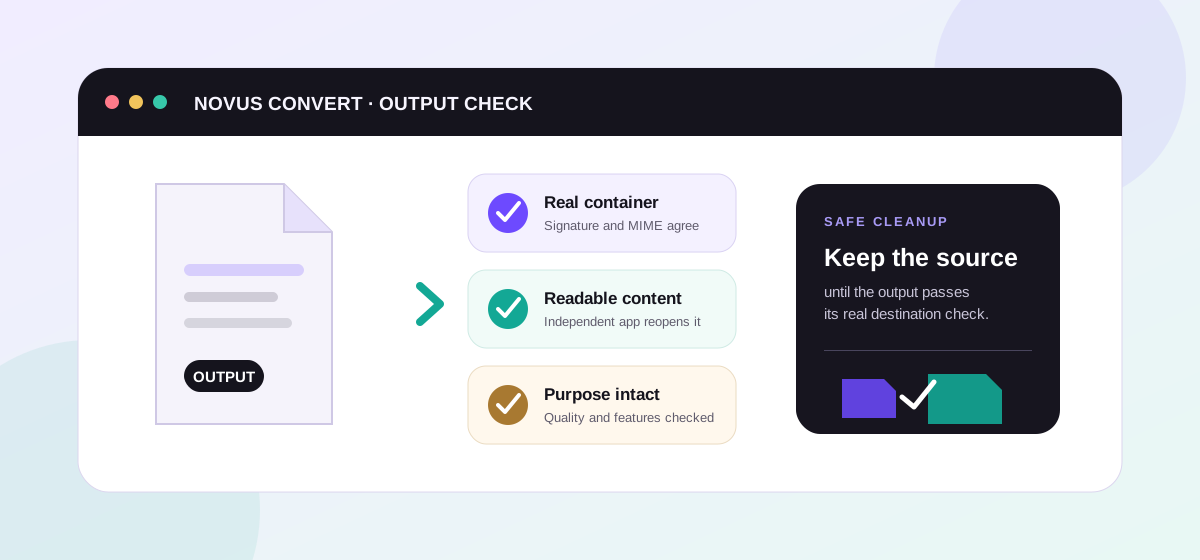
- Download the MP3 once its signature is validated. Novus Convert checks the real file header before the download button unlocks.
Choosing a format and bitrate#
MP3 is the default for a reason, it is the most universally supported audio format in existence, but it is not always the best fit. You can read more about its history and trade-offs on our MP3 format page. Here is how the common choices compare when you are pulling audio out of a video:
- MP3: the compatibility champion. Genuinely good at 192–320 kbps, and it plays literally everywhere. Reach for it when you are not sure what the destination supports.
- M4A (AAC): often the native codec already inside your MP4, which means it can frequently be copied out losslessly. Slightly better quality than MP3 at the same bitrate, with near-universal modern support.
- WAV: uncompressed PCM. Perfect fidelity relative to the decoded audio, but very large files. Useful when you plan to edit the audio in another tool afterward.
- FLAC: lossless but compressed, so it is smaller than WAV while staying bit-for-bit exact. A sound archival choice for music you want to keep.
Bitrate is the other dial worth understanding. For spoken-word audio (talks, lectures, podcasts), 128 kbps MP3 is plenty and keeps files small. For music, 256 to 320 kbps preserves the detail you would otherwise miss on good headphones. One honest caveat: re-encoding cannot restore quality the original video already discarded. There is no benefit to exporting a 320 kbps MP3 from a video whose audio was only 96 kbps to begin with. You would just make a bigger file holding the same information.
If the file you are working with is enormous (a two-hour recording, say), it can help to shrink the video first, or to keep the video and simply trim it, before you extract. Our guide to compressing video in your browser covers the trade-offs, and the same local compression tools can lighten a file before you pull the audio. From the first drop to the final download, everything stays on your device.
Troubleshooting
Open a converter that targets an audio output, such as the MP4 to MP3 route, drop your video in, and set the output to MP3 or another audio format. The engine ignores the video stream and writes only the sound to a new file. With Novus Convert this all happens in your browser, so the video is never uploaded.
It usually involves one lossy re-encode, because the audio inside most MP4 and MKV files is AAC or Opus rather than MP3, so it has to be transcoded. At 256–320 kbps that step is inaudible for everyday listening. If you want a bit-for-bit copy, extract to the audio’s native codec or to a lossless format like FLAC instead.
Yes, considerably. A full video conversion has to decode and re-encode every frame of the picture, which is the slow part. Audio extraction skips the video stream entirely and only processes the sound, so even a long recording finishes quickly on a typical laptop or phone.
Frequently asked questions
How do I get just the audio out of a video?
Open a converter that targets an audio output, such as the MP4 to MP3 route, drop your video in, and set the output to MP3 or another audio format. The engine ignores the video stream and writes only the sound to a new file. With Novus Convert this all happens in your browser, so the video is never uploaded.
Does extracting audio to MP3 reduce the quality?
It usually involves one lossy re-encode, because the audio inside most MP4 and MKV files is AAC or Opus rather than MP3, so it has to be transcoded. At 256–320 kbps that step is inaudible for everyday listening. If you want a bit-for-bit copy, extract to the audio’s native codec or to a lossless format like FLAC instead.
Is extracting audio faster than converting the whole video?
Yes, considerably. A full video conversion has to decode and re-encode every frame of the picture, which is the slow part. Audio extraction skips the video stream entirely and only processes the sound, so even a long recording finishes quickly on a typical laptop or phone.
What audio format should I extract to?
MP3 if you want something that plays everywhere. M4A (AAC) if you want slightly better quality and your video already carries an AAC track that can be copied out. WAV if you are going to edit the audio next and want no compression. FLAC if you want a compact but lossless archive of music.
Can I extract audio without uploading my video anywhere?
Yes. Novus Convert runs FFmpeg in WebAssembly directly in your browser, so the video is decoded and the audio written out entirely on your own device. Nothing is transmitted to a server, and every export is signature-validated locally before the download unlocks.