How to Choose File Compression Quality Without Guessing
Choose practical image, video, audio, PDF, and package compression settings by starting with the destination, measuring the result, and checking visible quality.
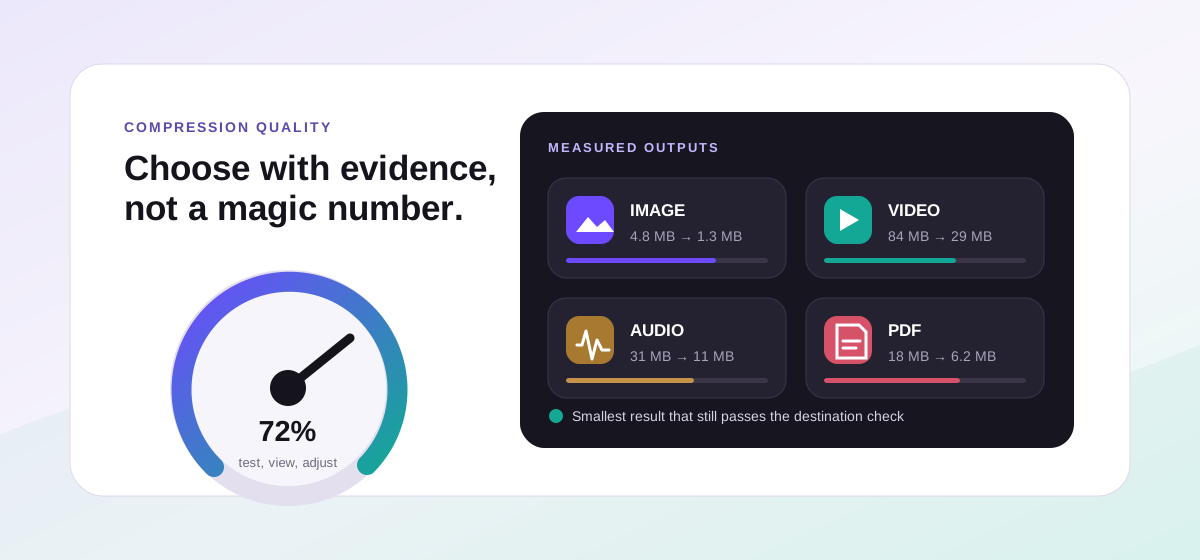
There is no universal best quality percentage. A setting that is generous for a small website thumbnail may be visibly rough on a product photograph, while the same number means something different to a video encoder, a PDF renderer, or an archive repacker. The useful question is not "Which number is perfect?" It is "What is the smallest result that still meets this file's destination?" That turns compression from guesswork into a short, repeatable test.
Define the destination before touching the slider#
Open the same-format compressor only after you know the constraint. An email attachment may need to stay under a fixed megabyte limit. A website image may need to look clean at 1200 CSS pixels. A podcast host may specify an audio codec and bitrate. A PDF portal may accept 10 MB but require readable fine print. Write down the hard requirement, the viewing size, and the details that cannot be sacrificed. Without that target, moving a quality control is just producing different files.
- Hard limit: maximum bytes, dimensions, duration, or upload policy.
- Viewing condition: phone screen, large monitor, print, editing timeline, or machine processing.
- Critical detail: small text, faces, gradients, transparency, stereo imaging, tables, or vector edges.
- Compatibility: whether the extension must remain unchanged or can move to a more efficient format.
For photographs, inspect texture and gradients#
Lossy photo compression removes information the encoder predicts you will not notice. Problems usually appear first around hair, foliage, fabric, text over a photo, and smooth skies or shadows. Start in the middle-to-high part of the quality range, export once, and compare at the size people will actually see. Then inspect a 100% crop of the hardest area. The JPG format guide explains why ringing and block artifacts become more visible as the encoder works harder.
Do not evaluate only the file-size number. A 70% reduction is not a win if a face looks waxy or text develops halos. Conversely, pixel-peeping at 400% can reject a result that is indistinguishable in its real 600-pixel card. Judge at delivery size first, then zoom in enough to catch obvious damage. If a second small quality reduction creates a large visual drop, move back one step; you found the useful edge for that image.
For graphics and transparency, format matters as much as quality#
Logos, diagrams, screenshots, and interface captures behave differently from photos. Flat color and sharp text often favor lossless PNG or a carefully chosen WebP mode. Transparency rules out JPG because the format has no alpha channel. If same-format compression cannot reach the target without visible damage, switching formats may be the better decision: use the PNG to WebP converter when the destination accepts WebP, or keep PNG when exact edges and broad compatibility matter more than the last few kilobytes.
For video, bitrate, resolution, and motion interact#
Video size is driven by duration and bitrate, while perceived quality also depends on resolution, frame rate, codec, and how difficult the motion is to encode. A talking head against a still wall can look good at a bitrate that ruins fast gameplay, confetti, water, or handheld foliage. Start with the required resolution and duration. Compress a representative clip that includes the busiest motion, not just the calm opening frame, and watch it at normal playback speed on the intended screen.
Check faces, moving edges, dark gradients, and sound sync. If the result remains too large, a modest resolution reduction can be less distracting than forcing bitrate far below what the original dimensions need. The deeper browser video compression guide explains bitrate and resolution trade-offs. Keep in mind that long media jobs run on your own hardware, so test a short representative source before committing to a large batch.
For audio, match the source and the listener#
Speech, dense music, and archival masters have different tolerance for loss. Spoken voice can remain clear at settings that make cymbals or reverberant music sound smeared. Listen with the device that matters—phone speaker, earbuds, car, or studio monitors—and include difficult passages such as sibilants, applause, quiet ambience, and stereo effects. Do not transcode a lossy file repeatedly; each generation asks another encoder to discard information from material that has already been simplified.
PDF, text, archives, fonts, and 3D files need different expectations#
The quality slider is meaningful for a PDF path that rasterizes pages, because lower quality can reduce image detail and text sharpness. Inspect fine print and diagrams, and keep the original searchable document when text selection or accessibility matters. Text and markup compression removes redundant whitespace or serialization overhead rather than artistic detail. ZIP-family packages, fonts, and some meshes are repacked or normalized; they may shrink modestly or even grow if the source was already optimized.
Use a two-pass workflow instead of chasing one magic number#
- Choose a representative file and define the size or compatibility target.
- Run a conservative first pass and compare the measured output size with the target.
- Open the result independently and inspect the family-specific problem areas.
- If there is room, lower quality in one meaningful step; if quality failed, raise it or change strategy.
- Apply the proven setting to similar files, but spot-check outliers with more detail, motion, pages, or duration.
Batches work best when the inputs are genuinely similar. Ten product photos shot in one session can share a tested setting. A mixed queue containing a logo, a night photograph, a scanned contract, and a screen recording should not be judged by one percentage. Group files by purpose, test the hardest example in each group, and remember that per-file warnings are evidence rather than noise.
The practical rule#
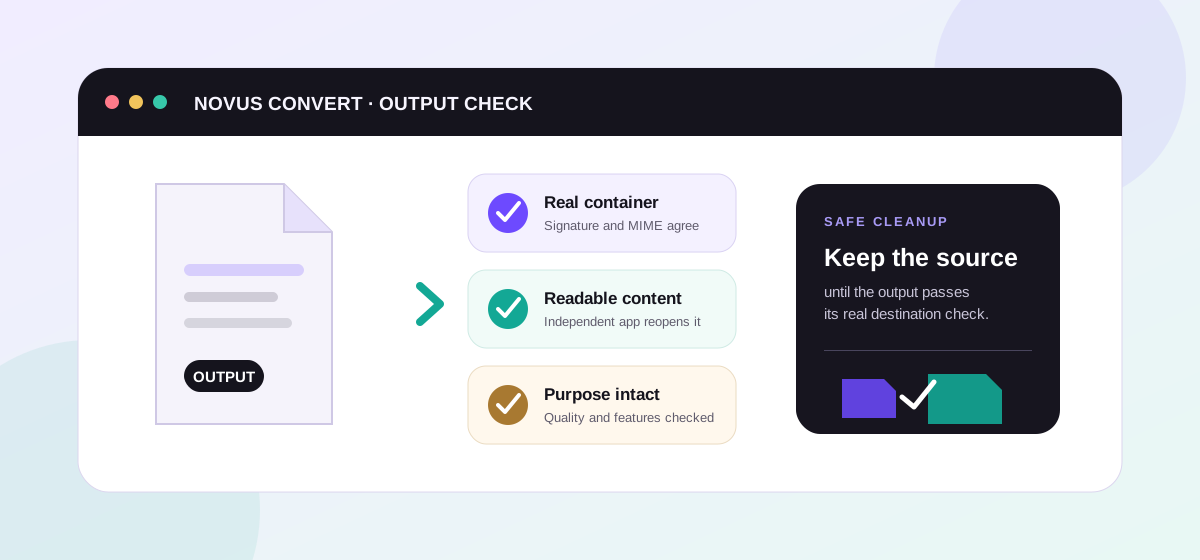
Use the highest compression that still passes a real destination check, not the lowest number the control allows. Save the original, measure the result, and verify the output before cleanup. The conversion verification checklist gives you the companion review process for images, media, documents, data, archives, and 3D files.
Troubleshooting
Start conservatively in the middle-to-high range, measure the result against your real size target, and inspect it at the intended viewing condition. The same percentage does not mean the same thing across formats or encoders.
The source may already be efficient, or most of its bytes may come from data that the selected path cannot simplify much. Repacking ZIP-family packages and lossless assets often produces smaller gains than re-encoding photos or video.
Keep the resolution required by the destination, then test quality or bitrate on a motion-heavy sample. If bitrate must fall so far that moving detail breaks down, a modest resolution reduction may look cleaner overall.
Frequently asked questions
What compression quality should I start with?
Start conservatively in the middle-to-high range, measure the result against your real size target, and inspect it at the intended viewing condition. The same percentage does not mean the same thing across formats or encoders.
Why did a lower quality setting barely reduce my file?
The source may already be efficient, or most of its bytes may come from data that the selected path cannot simplify much. Repacking ZIP-family packages and lossless assets often produces smaller gains than re-encoding photos or video.
Should I reduce resolution or quality first for video?
Keep the resolution required by the destination, then test quality or bitrate on a motion-heavy sample. If bitrate must fall so far that moving detail breaks down, a modest resolution reduction may look cleaner overall.
Can I use one quality setting for a mixed batch?
Only when the files have similar format, content, and destination. Group mixed work by purpose and test the hardest example in each group; a photo, logo, document, and screen recording should not share one acceptance standard.
Does compression remove metadata?
It depends on the engine and format. Re-encoding often drops some embedded metadata even when visible content survives. Treat metadata preservation as a separate requirement and inspect the exported file before deleting the source.