Convert or Compress? Keep the Same Format When You Only Need a Smaller File
Learn when Novus Convert’s converter and compressor diverge: change formats on /convert, keep PNG→PNG or MP4→MP4 on /compress, and use quality without losing the download.
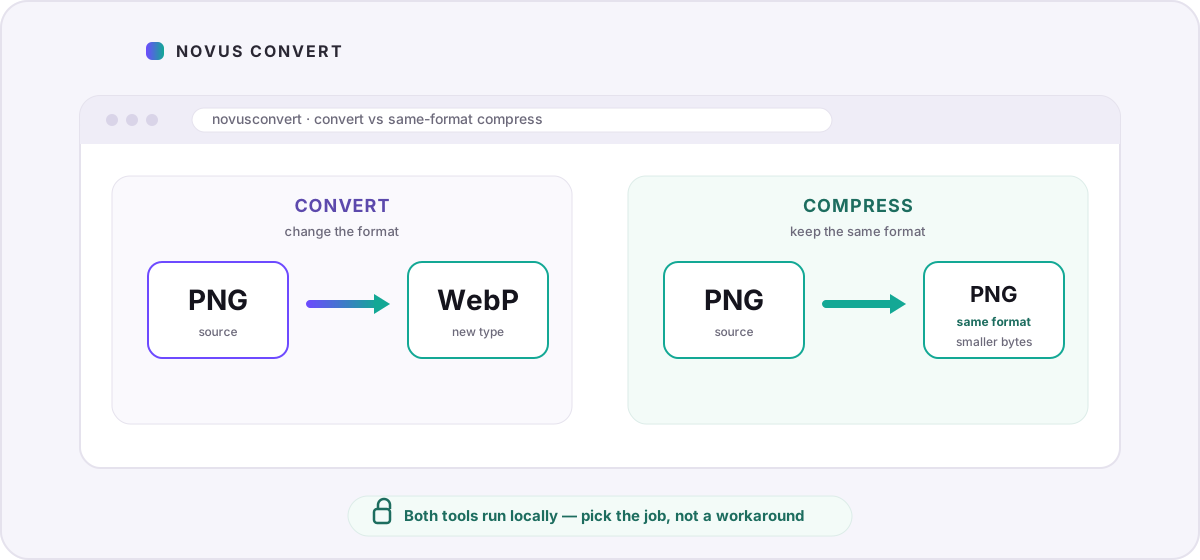
Novus Convert exposes two related tools that people often treat as one: convert and compress. They share a private, in-browser engine, but they answer different questions. Convert changes what kind of file you have. Compress keeps the kind you already have and tries to make that file smaller. Knowing which door to open saves a round trip through the wrong picker — and it is the difference between a WebP you asked for and a PNG that merely got re-encoded.
What “convert” is for
Use the converter when the destination format is the point of the job: HEIC phone photos that must become JPG for a website, CSV rows that must become XLSX for a colleague, GIF animation that must become MP4 for email limits, Markdown that must become PDF for a handout. The output picker lists compatible targets and deliberately excludes “the same extension again,” because same-format work belongs on the compress side.
- Convert when the recipient or platform rejects the current type.
- Convert when you need a different container for editing, printing, or publishing.
- Convert when you are happy to trade the source format for a more portable one — even if the file also happens to get smaller.
What “compress” is for
Use the compressor when the extension should stay put. A PNG should leave as a PNG, an MP4 as an MP4, a PDF as a PDF. The queue shows a locked “same format” badge instead of a convert-style format menu, because remapping AVI to MP4 or WAV to FLAC is conversion by another name. Compress re-encodes or repacks with a quality control so you can favor smaller bytes or higher fidelity — still without uploading.
Quality, downloads, and already-efficient files
On compress, the quality slider is the main lever. Lower values push the encoder harder; higher values protect detail. Some files are already near the floor of what a browser encoder can achieve — a carefully exported WebM or a tiny optimized PNG may not shrink further. In that case Novus Convert still finishes the run, labels the outcome, and lets you download the result or keep the original. That is intentional: a hard error that withholds the file after a successful re-encode is worse than an honest “not smaller” note.
- Open Compress when you need the same extension; open Convert when you need a different one.
- Set quality for how much detail you can spare. You can re-run the same queue after moving the slider.
- Read any on-page warning if the output is not smaller — then download, adjust quality, or switch to Convert if a different format would help more.
How the two tools share an engine — and why that still matters
Under the hood, convert and compress both run in the browser with the same privacy model: decode locally, encode locally, validate the signature, then unlock download. Daily export limits still apply by input format. The difference is policy and defaults. Convert’s output menu is a map of destinations. Compress’s badge is a promise that the extension will not quietly change while you chase a smaller byte count.
That separation also keeps support honest. If a container cannot be rewritten in-browser — certain legacy video types, camera RAW as RAW, or archive formats without a writer — compress marks it unsupported instead of pretending a remapped MP4 is “compression.” Convert remains available when a different, encodable format is the real solution.
A quick decision guide
- Need JPG for a CMS that rejects HEIC? Convert.
- Need the same PNG, just lighter for email? Compress.
- Need MP4 from a MOV phone clip? Convert.
- Need a smaller MP4 that remains MP4? Compress.
- Need PDF from a screenshot? Convert (image → PDF).
- Need a smaller PDF that remains PDF? Compress.
Examples from everyday workflows
A designer exports a transparent PNG UI asset that must stay PNG for a client handoff but is too heavy for Slack — that is compress. A marketer needs the same asset as WebP for a landing page — that is convert. A parent has a long MOV from a phone that schools only accept as MP4 — convert. The MP4 still will not attach to email — compress the MP4, or convert earlier with a lower quality target if the school only cares about the container.
Spreadsheets follow the same logic. CSV to XLSX is convert because colleagues need a workbook. An already-correct XLSX that must stay XLSX but shrink for a portal upload may not always have a dramatic same-format win; sometimes the honest move is converting a sheet export to CSV when flat text is acceptable. Read the unsupported and warning states in the queue — they are part of the product, not noise.
Some inputs cannot same-format compress in the browser because there is no local writer for that container — legacy WMV, many camera RAW files, or RAR create fall in that bucket. Convert may still help by moving you to an encodable type. For video-specific bitrate tactics, see compressing video in your browser; for packaging images into documents, see images and SVG to PDF.
Frequently asked questions
Why can’t I pick a different output format on the compress page?
Compress is intentionally same-format only. Changing PNG to WebP or AVI to MP4 is conversion, and that picker lives on the convert routes so the two tools stay honest about what they do.
What if compression finishes but the file is not smaller?
Some files are already efficient for the local encoder. Novus Convert still completes the job, warns you, and offers the download instead of treating “not smaller” as a hard failure. Lower quality and try again, or convert to a more compressible format if the extension can change.
Does convert also shrink files?
Often yes, as a side effect — WebP and MP4 targets are usually lighter than the sources they replace — but the primary goal of convert is the new format. Use compress when the extension must stay the same.
Can I convert and compress in one session?
Yes. Convert to the format you need, download, then open Compress if you want another pass that keeps that new extension. Each tool runs locally; nothing is uploaded between steps.
Which formats support same-format compression?
Common images such as JPG, PNG, and WebP; encodable media such as MP4, MOV, MKV, WebM, and several audio types; plus PDF, many text/markup files, ZIP-family packages, and other writers wired into the compressor. Unsupported types show clearly in the queue so you can switch to Convert instead.