How to use Novus Convert
Novus Convert turns your browser into a private file workshop: it converts and compresses files on your own device, so nothing is ever uploaded. This tutorial walks through every workflow — from your first conversion to batch queues, compression, the format directory, downloads, and troubleshooting.
How Novus Convert works
Before the step-by-step guides, here is the mental model. Everything you do happens locally, in the browser tab you already have open.
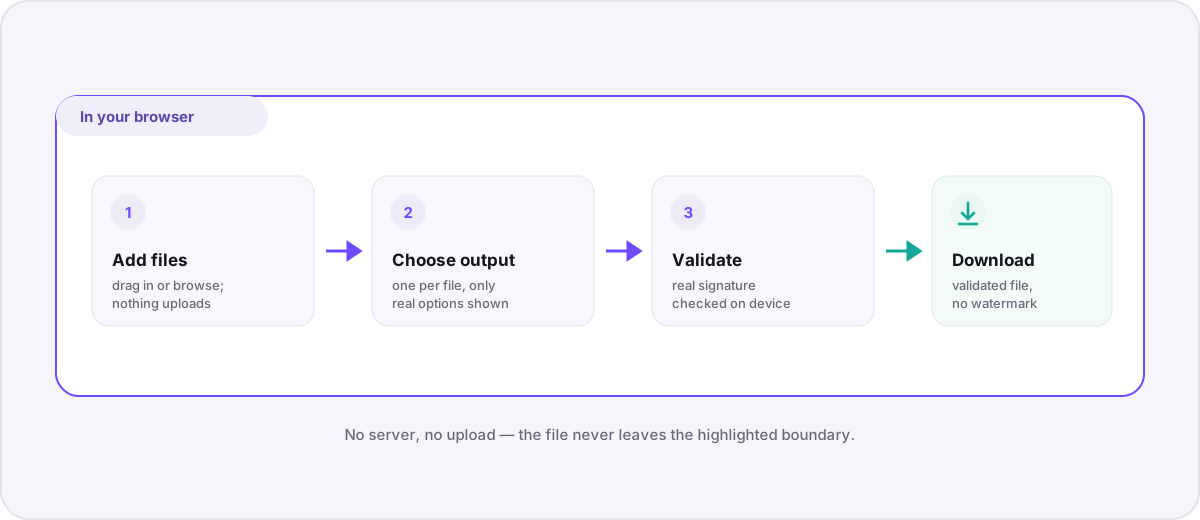
- It runs on your device. Supported files are decoded and re-encoded in your browser’s memory. There is no upload, no account, and no server-side conversion pipeline for these routes.
- Outputs are verified. Every result is checked for its real format signature before the download button turns on, so you never download a mislabeled or empty file.
- It is honest about limits. The format directory clearly labels which formats have a working converter and which are reference-only, so you always know what to expect.
- It is free. No sign-up and no watermarks — the site is supported by clearly labeled advertising.
Convert your first file
The core workflow lives on the converter. You can jump straight to a specific route like the HEIC to JPG converter, or start from the general workspace and choose outputs yourself.
Open the converter
Go to the converter. You will see a drop zone and, once you add files, a queue with a per-file output picker.
Add your files
Drag files onto the drop zone, or tap it to browse. Nothing uploads — the files are simply read into the page. Speed depends on your device, not your connection.
Choose an output for each file
Each row has its own output menu, populated only with formats this release can actually produce from that input. Pick one output for the whole batch or a different result per row.
Let the local engine run
A progress bar tracks each file as it is decoded and re-encoded on your device. Heavier files (like video) take longer because your own hardware does the work.
Download the validated result
When a file passes format validation, its download button activates. Download each result individually; the output stays in temporary browser memory until you clear the queue or close the tab.
Work with a mixed batch
Because there is no per-file upload, converting many files at once is the natural way to work. The queue handles mixed file types in a single pass.
- Add as many files as you like — you can mix images, audio, documents, and more in the same queue.
- Set one output for compatible files, or open each row’s menu and choose a different result per item.
- Each row succeeds or fails independently. A malformed file shows an error under its name without affecting the others.
- Download successful results one by one as they finish validating, and retry or remove individual rows as needed.
Compress images, video, and audio
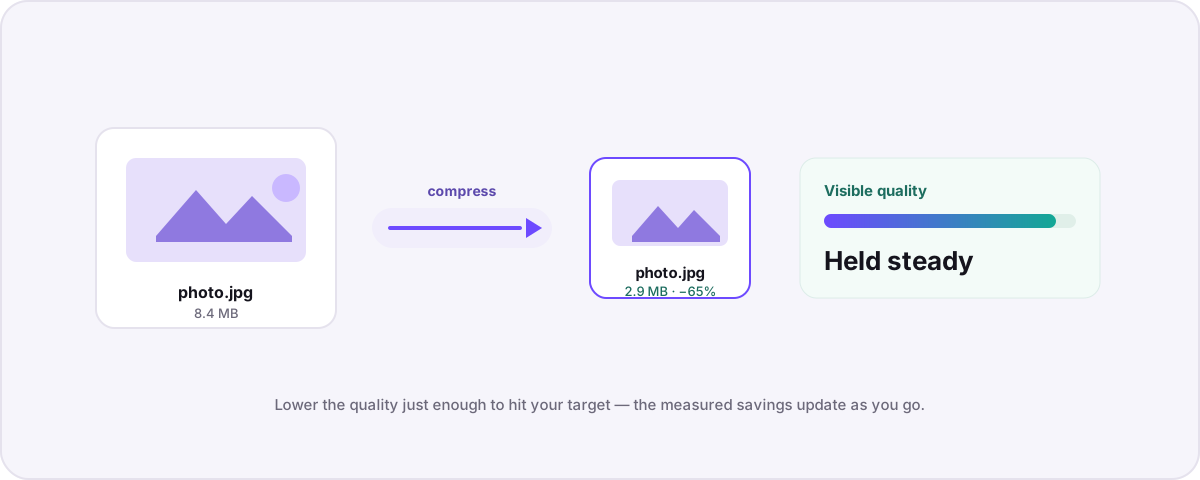
The compression tool re-encodes media locally at a quality you choose while keeping the same file format — PNG stays PNG, MP4 stays MP4 — and shows the real size outcome before you download.
Open the compressor
Go to Compress and add the images, video, or audio you want to shrink.
Confirm same-format output
Each row locks the original extension. If you need a different type, switch to Convert instead of forcing a remap here.
Adjust the quality
Use the quality control to trade size against fidelity. For most photos and everyday video, a modest reduction is invisible on screen.
Download even when savings are small
If the file was already efficient, you still get a validated download with a clear warning rather than a hard error — then retry at a lower quality or convert to another format if needed.
Find the conversion you need
Two directories help you discover what is possible and land on the right page.
- The conversions directory at /conversions lists every input-to-output route backed by a real, working engine. Start here when you know the conversion you want.
- The format directory at /formats catalogs every format the site understands, each labeled as a working converter or a reference-only guide.
- Individual format pages — like JPEG, WebP, or MP4 — explain the format and link to every route into and out of it.
- Packaging a screenshot or logo? See images and SVG to PDF. Not sure which image format to pick? See JPG vs PNG vs WebP vs AVIF vs HEIC.
Downloads, validation, and daily limits
A few details about what happens after a conversion succeeds.
- Validation first. A download only activates once the output passes a real format-signature check, so you never save a broken file.
- Temporary by design. Results use temporary in-memory object URLs that are released when you clear the job or close the tab. Save anything you want to keep.
- Daily export allowances. To keep the free service sustainable, each input format has a per-browser, per-day download allowance. Every download button shows that format’s remaining count.
- Keep your originals. A conversion is an export, not a replacement. Some formats cannot preserve every proprietary feature, so hold on to your source files and use the post-conversion verification checklist before cleanup.
Tips for specific file types
Each family of formats has a few things worth knowing.
- Photos & images. Convert iPhone HEIC to JPG or PNG, encode AVIF, export rasters to PDF, or decode camera RAW files locally. When exporting a transparent image to JPG, transparent areas are filled with white — choose PNG to keep transparency.
- Video & audio. Beyond transcoding video, the engine can extract an audio track to MP3 or WAV, capture a poster frame as an image, build a GIF, or turn an animated GIF / APNG into MP4 or WebM — all from the same local FFmpeg engine.
- Documents & data. Extract Office and PDF text, write Markdown/HTML/TXT to DOCX, PDF, or EPUB, interchange CSV/JSON with XLSX and ODS, and convert SRT↔VTT subtitles. Office→PDF routes are honest text/table extracts, not Word-perfect layouts.
- Archives. Repackage ZIP, 7z, RAR, TAR, and more with traversal protection and entry limits that guard against malicious archives.
- Fonts & CAD/mesh. Convert between TrueType, OpenType, and web font formats; triangulate STEP and IGES CAD models; or interchange STL, OBJ, 3MF, GLB/glTF, and PLY meshes — locally.
Using Novus Convert on your phone
Every conversion that works on desktop works on mobile, with a layout tuned for small screens.
- The bottom bar gives one-tap access to Home, Convert, Compress, and the conversions directory.
- Tap Menu in the bottom bar to open the full drawer with every section, including this tutorial, the format categories, and help pages.
- In the queue, each file’s output picker expands to full width so it is easy to tap, and results download the same way they do on desktop.
Your privacy and staying in control
Local processing is the foundation, but you also control storage and analytics.
- Read exactly what is and is not collected in the privacy policy, and how files are protected from input to export on the security page.
- Manage analytics and advertising storage anytime with the Cookie settings control in the site footer; your choice is remembered locally.
- Because conversions are local, your file contents, names, and metadata are never sent to us or to any analytics or advertising partner.
When something goes wrong
Most failures have a clear, reported cause. Here is how to read and resolve them.
- If a conversion fails, the error under the file names the real cause reported by the engine — a malformed file, an unsupported codec, encryption, or failed validation. Your original is never changed.
- If a format page has no converter, it is reference-only in this release; check the conversions directory for a working route to your target format instead.
- Very large files are bounded by local memory limits that protect your browser; try a smaller file or close other tabs if you hit one.
- Still stuck? The help center answers common questions, and you can reach a person through the contact page — a report is fastest to resolve when it includes the input format, the output you chose, and the exact error text.
Tutorial FAQ
Do I need to create an account to use Novus Convert?
No. There is no sign-up and no login. Open the converter or compressor, add your files, and go. Daily export allowances are counted locally per browser, not per account.
Are my files uploaded anywhere during a conversion?
No. For every conversion route currently offered, files are decoded and re-encoded in your browser’s memory. There is no upload endpoint and no server-side conversion, so your files never leave your device.
Why is there no converter on some format pages?
Those formats are reference-only in this release — documented but not yet convertible in the browser. The interface only shows upload and download controls where it can produce and validate a real output.
Where do my converted files go after I close the tab?
Results live in temporary in-memory object URLs that are released when you clear the job or close the tab, so download anything you want to keep before leaving the page.
Is there a limit to how many files I can convert?
You can queue many files at once. Each input format has a per-browser, per-day download allowance to keep the free service sustainable, and every download button shows the remaining count for that format.