How to Compress Video Without Losing Quality (Right in Your Browser)
Understand what actually makes a video file large, then compress it locally — no uploads, no watermarks — using bitrate, resolution, and codec choices that preserve visible quality.
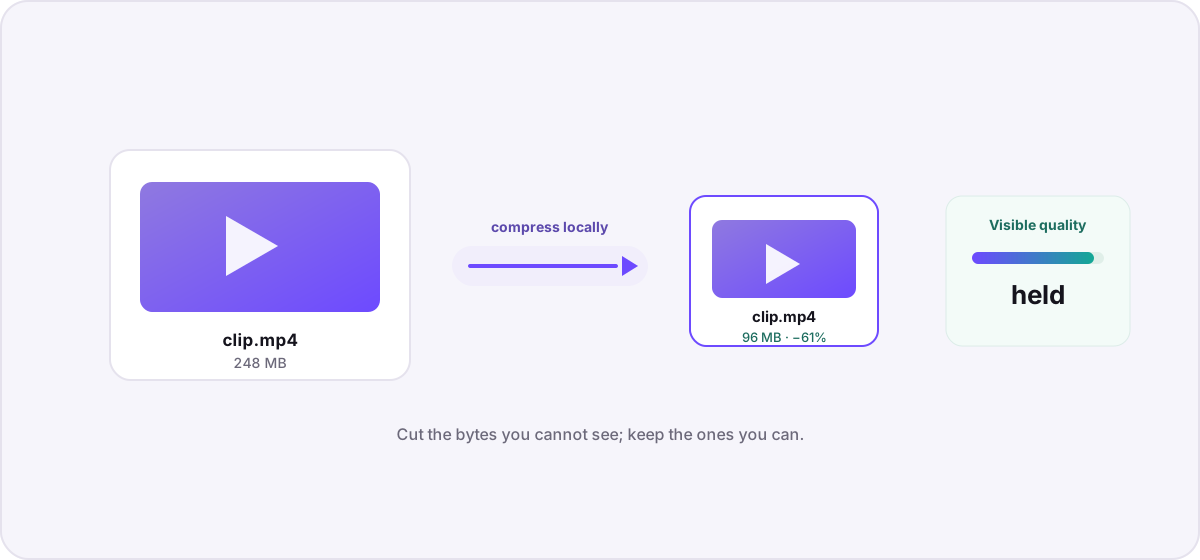
“Compress without losing quality” is a slight fib that everyone tells, so let us be honest up front: all lossy video compression discards some information. The real goal is to discard the parts you cannot see while keeping the parts you can — and to do it without handing your video to a website that adds a watermark or a fifteen-minute upload. This guide explains what makes video large, then walks through compressing it privately in your browser.
What actually makes a video file big?#
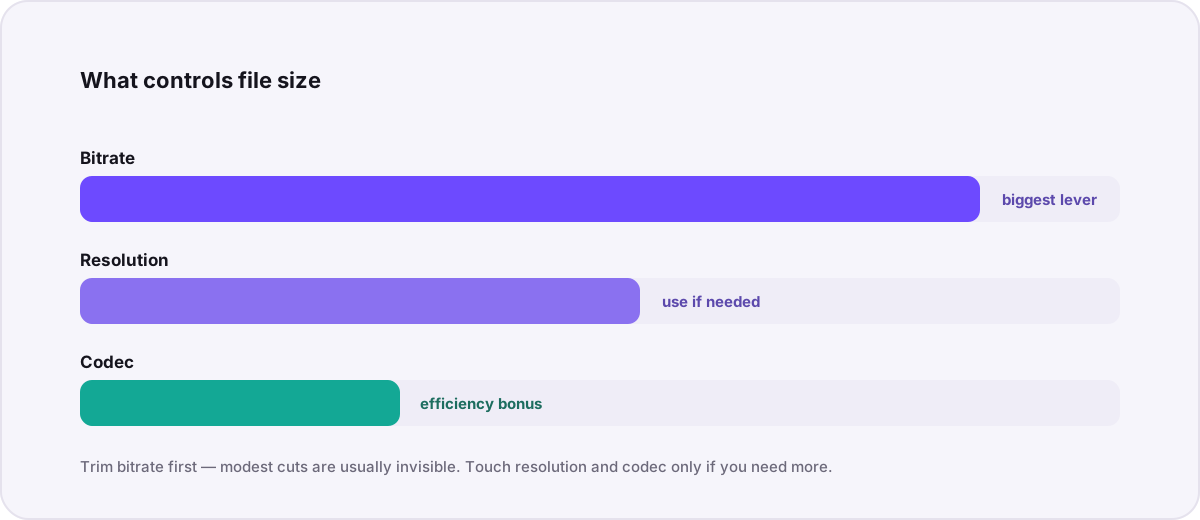
Three levers control file size, and understanding them is most of the battle:
- Bitrate — how many megabits per second the video uses. This is the single biggest factor. Halve the bitrate and you roughly halve the file size.
- Resolution — the pixel dimensions (1080p, 720p, 4K). A 4K file has four times the pixels of 1080p, and needs far more data to look sharp.
- Codec — the algorithm doing the compressing. Newer codecs like VP9 and H.265 squeeze the same quality into fewer bits than older ones like H.264.
The right order of operations#
To shrink a video while keeping it looking good, adjust the levers in this order — stopping as soon as the file is small enough:
- Lower the bitrate first. This is where the easy savings live, and modest reductions are usually invisible.
- Drop the resolution only if you need more. A 4K clip destined for a phone screen loses nothing meaningful at 1080p.
- Switch to a more efficient codec if your destination supports it — WebM/VP9 for the web, for example.
- Trim length or frame rate last, since those change the content itself, not just its efficiency.
Compressing video privately in your browser#
Novus Convert runs a full FFmpeg engine compiled to WebAssembly, so it can re-encode video entirely on your device. Nothing uploads, which also means there is no file-size limit imposed by someone else’s server and no watermark on the way out. Head to the compression tool and:
- Drop in your video — MP4, MOV, MKV, WebM, and many others are supported.
- Choose your target. Re-encoding to the same container at a lower quality shrinks the file; you can also change format if your destination prefers one.
- Adjust the quality control and watch the estimated savings before you commit.
- Run the encode locally. Larger files take longer because your device does the work — but your video never leaves it.
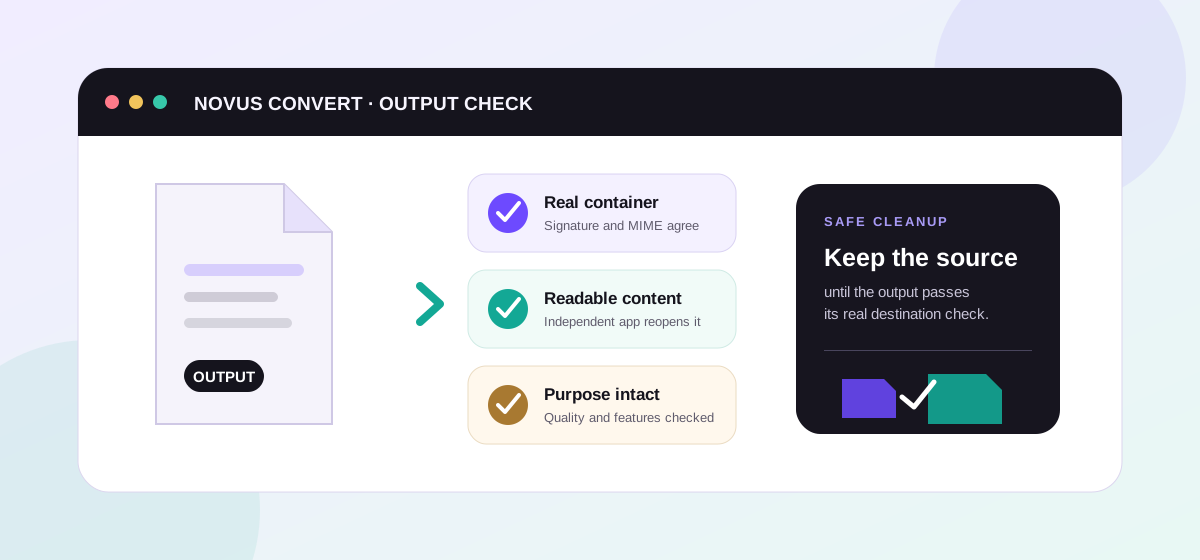
- Download the validated result once the real container signature checks out.
If you also need to change formats — say, turning an MP4 into a web-friendly WebM — you can do that in the same private workflow with the MP4 to WebM converter. And if all you actually want is the audio, the engine can extract an MP3 or WAV track without re-encoding the whole picture.
How small can you safely go?#
For most everyday footage, cutting the bitrate by 30–50% is invisible on a phone or laptop screen. Screen recordings and talking-head videos compress especially well because large areas of the frame barely change between frames. Fast-motion content — sports, gaming, particle effects — is less forgiving, so reduce bitrate more gently there and check a busy section before trusting the whole file.
Curious why the “upload to compress” model is so common and what it costs you? Our piece on browser-based versus online converters digs into the difference in privacy, speed, and limits.
Troubleshooting
Not literally — lossy compression always discards some data. But you can discard information the eye cannot perceive, so the result looks identical while being much smaller. Truly lossless video compression exists but barely reduces size, which is why perceptual compression is the practical answer.
Lower the bitrate first, since it is the dominant factor in file size and modest cuts are usually invisible. Reduce resolution only if you need further savings, and switch to a more efficient codec if your destination supports it. Change length and frame rate last.
There is no server-imposed upload limit because nothing is uploaded. The practical ceiling is your device’s available memory. Novus Convert applies generous local limits to protect your browser from running out of memory on very large files.
Frequently asked questions
Can you really compress a video without losing any quality?
Not literally — lossy compression always discards some data. But you can discard information the eye cannot perceive, so the result looks identical while being much smaller. Truly lossless video compression exists but barely reduces size, which is why perceptual compression is the practical answer.
What is the best setting to shrink a video?
Lower the bitrate first, since it is the dominant factor in file size and modest cuts are usually invisible. Reduce resolution only if you need further savings, and switch to a more efficient codec if your destination supports it. Change length and frame rate last.
Is there a file-size limit when compressing in the browser?
There is no server-imposed upload limit because nothing is uploaded. The practical ceiling is your device’s available memory. Novus Convert applies generous local limits to protect your browser from running out of memory on very large files.
Will browser-based compression add a watermark?
No. Watermarks are something upload-based services add to encourage paid plans. Because Novus Convert processes the file locally and is free, there is no watermark on the output.
Why does compressing a large video take a while?
Your own device is doing the encoding rather than a remote server farm, so processing time scales with the file size and your hardware. The upside is privacy and no upload wait — the video never leaves your machine.