How to Convert HEIC to JPG Without Uploading Your Photos
A private, step-by-step guide to turning iPhone HEIC photos into universally compatible JPGs entirely in your browser — no uploads, no accounts, no waiting.
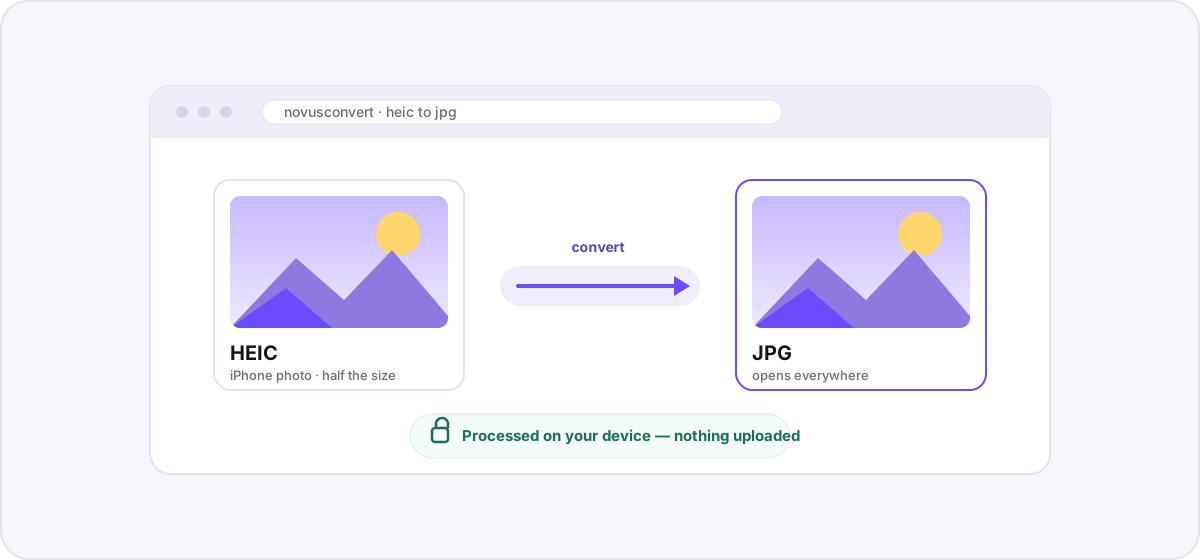
If you have ever emailed an iPhone photo to a colleague and heard back “I can’t open this,” you have met HEIC. It is the format your iPhone quietly switched to a few years ago, and while it is genuinely excellent, it is not welcome everywhere. This guide walks through converting HEIC to JPG the private way — the whole thing happens inside your browser, so your photos never leave your device.
What is HEIC, and why did my iPhone start using it?#
HEIC is Apple’s name for an image stored in the High Efficiency Image File Format (HEIF). Starting with iOS 11 in 2017, Apple made it the default capture format on newer iPhones and iPads because it stores the same photo at roughly half the size of a JPG, while also supporting things JPG never could — like 16-bit color, transparency, and multiple images in a single file (that is how Live Photos and bursts work).
The catch is compatibility. JPG has been the universal photographic format since the early 1990s, and virtually every device, browser, printer, and web form accepts it without complaint. HEIC is younger and narrower: Windows needs an extra codec, many websites reject it on upload, and plenty of apps simply shrug. Converting to JPG trades a little file size and quality headroom for the ability to open your photo literally anywhere.
The fast way: convert HEIC to JPG in your browser#
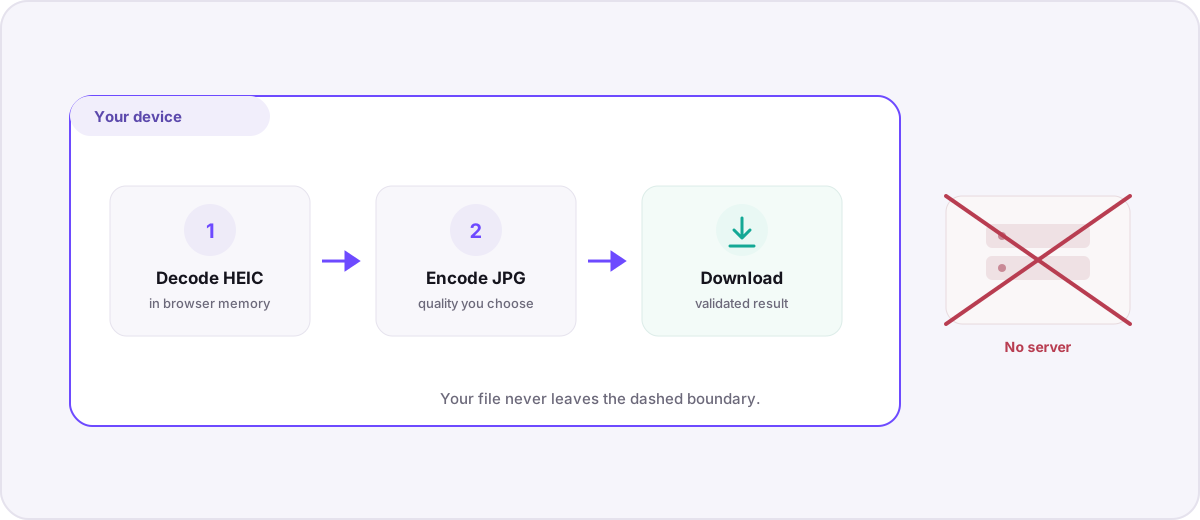
Novus Convert decodes HEIC locally using a WebAssembly build of the same HEVC image pipeline Apple uses, then re-encodes to JPG in memory. Here is the whole process on our HEIC to JPG converter:
- Open the HEIC to JPG route (or drop any mix of files into the general batch converter).
- Drag your .heic files onto the drop zone, or tap to browse. You can add a whole camera roll’s worth at once.
- Confirm the output is set to JPG. Each file gets its own output picker, so you can send some to PNG if you need transparency.
- Let the local engine run. A progress bar tracks each file; nothing is uploaded, so speed depends on your device, not your connection.
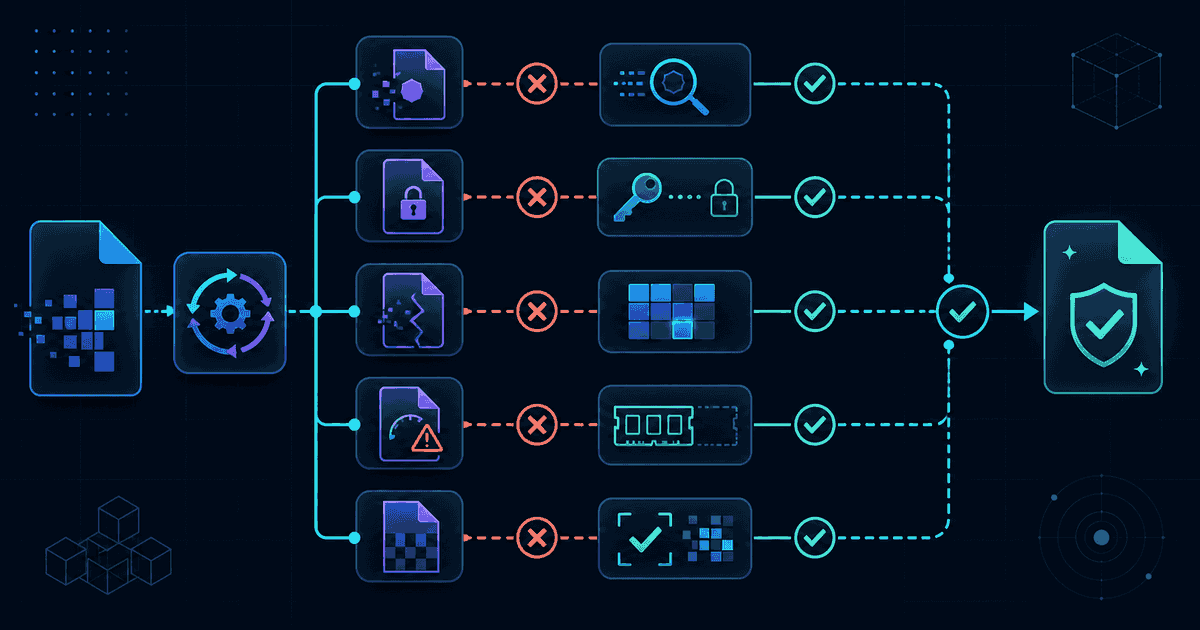
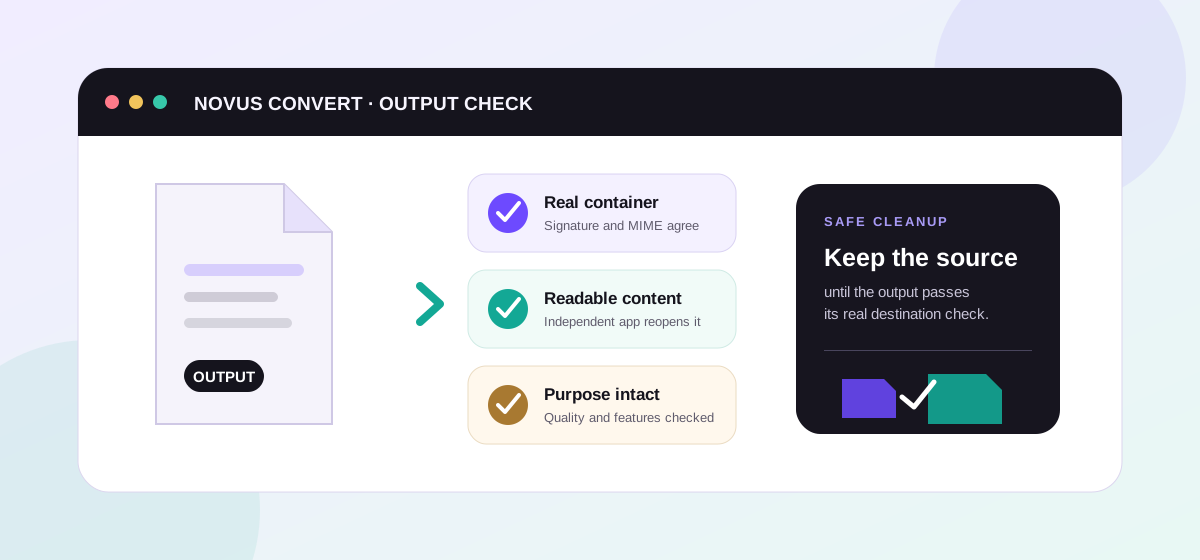
- Download each validated JPG. Novus Convert checks the real JPEG signature before enabling the download button.
What happens to quality and metadata?#
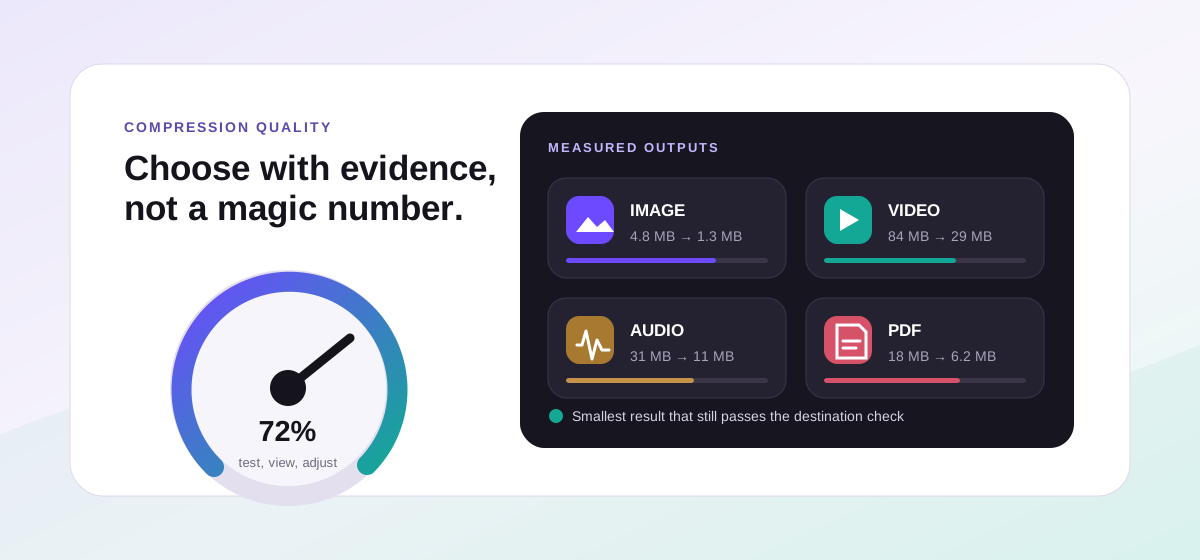
JPG is a lossy format, so a conversion is always a re-encode rather than a perfect copy. In practice, at a sensible quality setting the difference is invisible for everyday photos — the far bigger quality loss already happened when the scene was compressed into HEIC in the camera. If you plan to edit heavily or print large, keep the original HEIC as your master and treat the JPG as an export.
One deliberate behavior worth knowing: when a HEIC contains transparency and you export to JPG — which has no alpha channel — Novus Convert fills the transparent areas with white rather than producing a muddy result. If you need to preserve transparency, convert to PNG instead, which keeps the alpha channel intact.
Converting a lot of photos at once#
Because there is no server round-trip and no per-file upload, batches are the natural way to work. Add dozens of HEIC files, set them all to JPG, and download the results as each one validates. If your goal is to make the files smaller for sharing rather than just more compatible, pair the conversion with our local compression tools to dial in quality and measure the savings before you download.
Want to understand how JPG stacks up against PNG, WebP, and AVIF before you commit? Our explainer on choosing the right image format breaks down the trade-offs. And if you are curious about exactly why “upload to convert” tools are worth avoiding, read where your files really go.
Troubleshooting
It depends entirely on how the tool works. Any converter that uploads your photo to a server exposes it — and its embedded location and timestamp metadata — to that server. A browser-based converter like Novus Convert decodes and re-encodes the file in your own device’s memory, so nothing is transmitted and there is nothing to leak.
JPG is lossy, so the export is a re-encode rather than a bit-for-bit copy. At a reasonable quality setting the difference is imperceptible for everyday viewing and sharing. Keep the original HEIC if you intend to edit heavily or print at large sizes.
HEIC is a relatively new format and Windows does not ship the HEVC image codec it needs in every edition. Rather than installing extra codecs, converting the files to JPG makes them open everywhere without additional software.
Frequently asked questions
Is it safe to convert HEIC photos online?
It depends entirely on how the tool works. Any converter that uploads your photo to a server exposes it — and its embedded location and timestamp metadata — to that server. A browser-based converter like Novus Convert decodes and re-encodes the file in your own device’s memory, so nothing is transmitted and there is nothing to leak.
Will converting HEIC to JPG reduce the quality of my photo?
JPG is lossy, so the export is a re-encode rather than a bit-for-bit copy. At a reasonable quality setting the difference is imperceptible for everyday viewing and sharing. Keep the original HEIC if you intend to edit heavily or print at large sizes.
Why can’t Windows open my HEIC files by default?
HEIC is a relatively new format and Windows does not ship the HEVC image codec it needs in every edition. Rather than installing extra codecs, converting the files to JPG makes them open everywhere without additional software.
Can I convert many HEIC files at once?
Yes. Because there is no upload step, batch conversion is the norm — add as many HEIC files as you like, set them all to JPG, and download each one as it finishes validating. Processing speed is limited by your device, not your internet connection.
What if my HEIC has transparency?
JPG has no transparency channel, so Novus Convert fills transparent regions with white when you export to JPG. If preserving transparency matters, convert to PNG instead.