How to Convert PNG to WebP (and JPG) to Shrink Web Images
Turn heavy PNG screenshots and graphics into lightweight WebP or JPG in your browser: smaller pages, no uploads, and measured savings you control.
A single PNG screenshot can weigh more than an entire page’s worth of text. PNG keeps every pixel exactly as captured, which is wonderful for crisp interfaces and unfortunate for page weight. Drop a few full-resolution PNGs into an article and you have quietly added megabytes that every visitor pays for on every load. This guide shows how to turn those heavy PNGs into lightweight WebP or JPG right in your browser, so your pages get smaller while your original files never leave your device.
Why PNG screenshots get so big#
PNG is a lossless format. When you save one, it records the exact color of every pixel and compresses that data without throwing any of it away. For flat graphics (logos, icons, diagrams, and screenshots with large areas of solid color), that compression is remarkably efficient. The trouble starts when a PNG holds photographic detail. Gradients, camera noise, or a busy desktop wallpaper give the lossless compressor almost nothing to fold together, so the file balloons. A screenshot of a photo-heavy dashboard can easily be several times larger as a PNG than the same image saved as WebP or JPG.
WebP or JPG: which should you pick?#
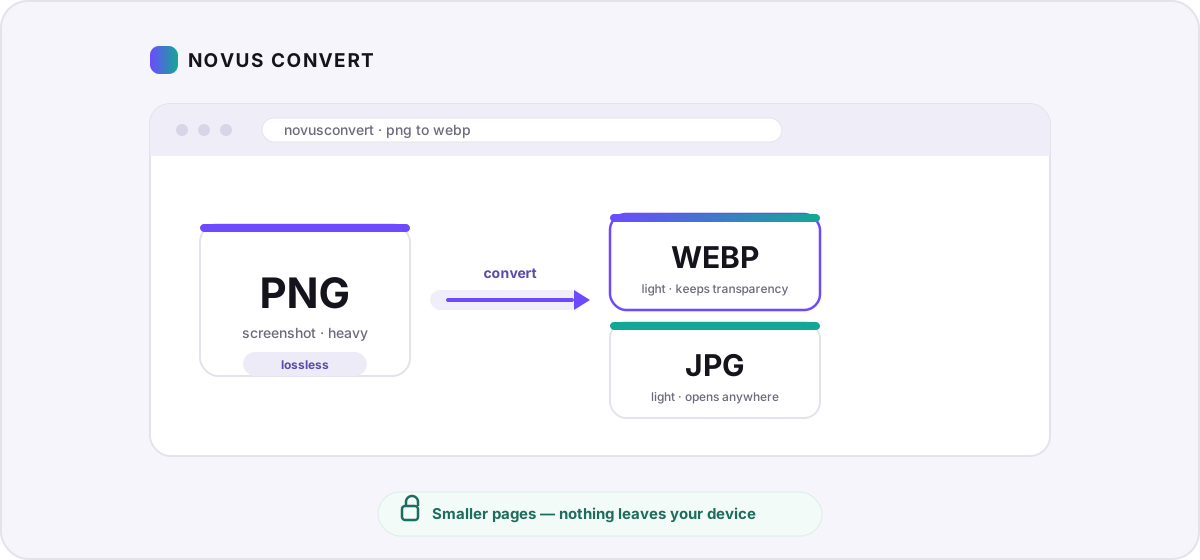
Both formats will shrink a PNG dramatically, but they solve slightly different problems. WebP is the modern web image format from Google: it supports both lossy and lossless compression and, crucially, keeps the alpha channel, so transparency survives the trip. JPG is the universal photographic format. It has no transparency and is always lossy, but it opens in virtually everything, including decades-old software and the occasional upload form that still refuses anything newer.
- Has transparency, or crisp text and sharp edges you want kept pixel-perfect? Choose lossless WebP. It preserves the alpha channel and keeps lines razor sharp while still beating PNG on size.
- Photographic content with no transparency? Lossy WebP or JPG will both shrink it hard; pick JPG when you need the result to open literally anywhere.
- Need the broadest possible compatibility: an old CMS, a stubborn email client, a form that only accepts JPEG? Use our PNG to JPG converter and flatten transparency onto a solid background.
- Just dropping a screenshot into chat or a doc? Lossy WebP at a high quality setting is usually the smallest file that still looks clean.
Convert PNG to WebP in your browser#
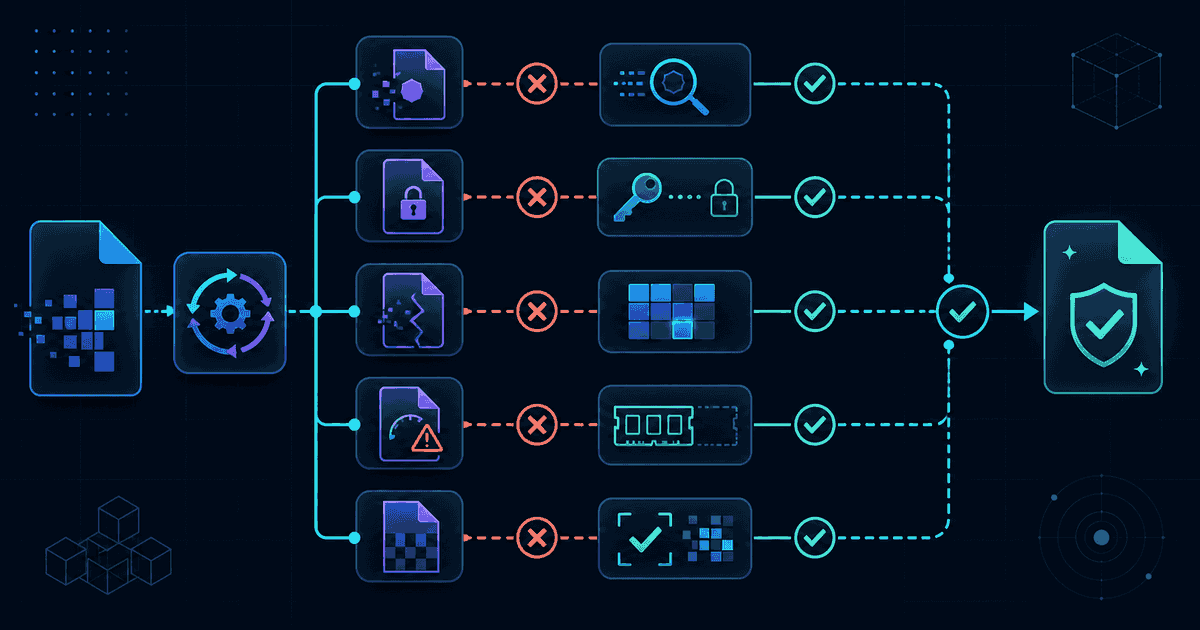
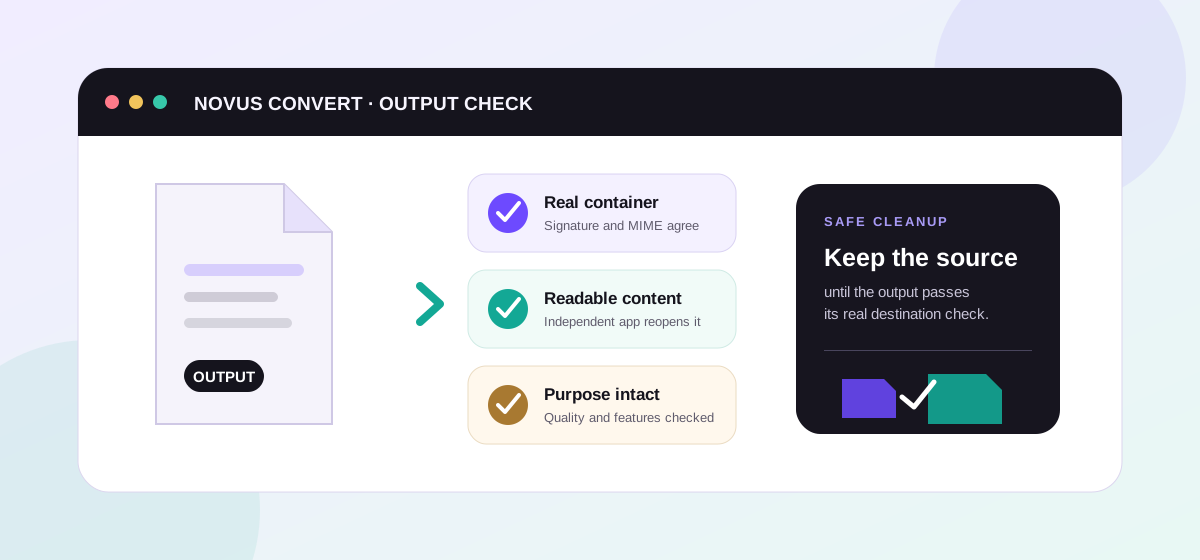
Novus Convert reads your PNG and re-encodes it locally through a WebAssembly image pipeline, then checks the real WebP signature before it unlocks the download. Here is the whole flow on our PNG to WebP converter:
- Open the PNG to WebP route, or drop a mix of files into the general batch converter.
- Drag your .png files onto the drop zone, or click to browse. Add as many as you like. Because there is no upload, the whole batch is handled on your device.
- Confirm each file’s output. WebP is the default here; switch individual files to JPG when you need maximum compatibility.
- Choose lossless when transparency or crisp text matters, or a quality level when you want the smallest possible file. The progress bar tracks encoding, not a network transfer.
- Compare the new size against the original, then download each validated file. The download button only enables once the WebP or JPEG signature checks out.
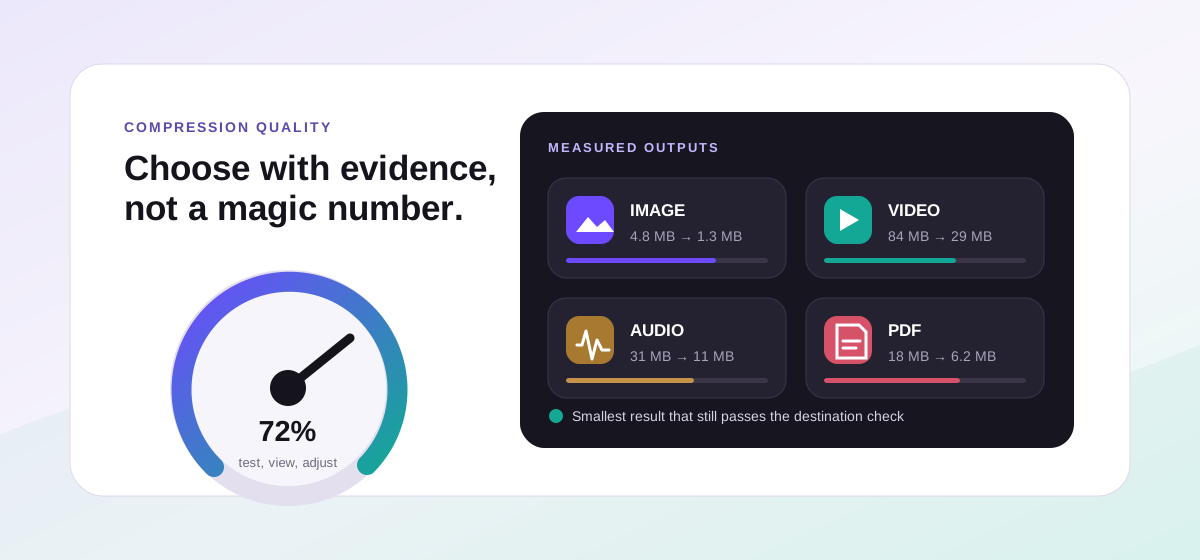
Re-encoding is a one-way trip when you pick a lossy setting: WebP and JPG both discard detail to save space, and once discarded it cannot be recovered. For anything you might edit later (source graphics, master screenshots), keep the original PNG as your archive and treat the WebP or JPG as an export. If your real goal is to squeeze files as small as possible while watching the quality, pair the conversion with our local compression tools, which let you nudge the quality and see the resulting size before you commit to a download.
Not sure a format switch is even the right move? Our rundown of how the major image formats compare lays out where PNG, JPG, WebP, and AVIF each earn their place, and the WebP format reference covers browser support and the lossy-versus-lossless choice in more depth. Once you know which target you want, the conversion itself takes seconds, and every byte of it happens on your own machine.
Troubleshooting
Yes. Every current major browser (Chrome, Firefox, Safari, and Edge) displays WebP, and Safari has supported it since version 14. The main holdout is very old software like Internet Explorer. If you need an image that opens in absolutely everything regardless of age, convert to JPG instead.
It depends on the setting. Lossless WebP keeps every pixel exactly as the PNG had it, so there is no visible change. You simply get a smaller file. Lossy WebP and JPG discard some detail to save more space; at a high quality setting the difference is hard to spot, but it is a re-encode, not a perfect copy. Keep the original PNG if you plan to edit it later.
For screenshots with text and sharp UI edges, lossless WebP is usually the best pick. It stays crisp and still shrinks the file. Reach for JPG only when you need the result to open in older or pickier software that does not accept WebP. JPG also cannot store transparency, so a PNG with a transparent background will be flattened onto a solid color.
Frequently asked questions
Do all browsers support WebP now?
Yes. Every current major browser (Chrome, Firefox, Safari, and Edge) displays WebP, and Safari has supported it since version 14. The main holdout is very old software like Internet Explorer. If you need an image that opens in absolutely everything regardless of age, convert to JPG instead.
Will converting PNG to WebP lose quality?
It depends on the setting. Lossless WebP keeps every pixel exactly as the PNG had it, so there is no visible change. You simply get a smaller file. Lossy WebP and JPG discard some detail to save more space; at a high quality setting the difference is hard to spot, but it is a re-encode, not a perfect copy. Keep the original PNG if you plan to edit it later.
Should I use WebP or JPG for my screenshots?
For screenshots with text and sharp UI edges, lossless WebP is usually the best pick. It stays crisp and still shrinks the file. Reach for JPG only when you need the result to open in older or pickier software that does not accept WebP. JPG also cannot store transparency, so a PNG with a transparent background will be flattened onto a solid color.
What happens to transparency when I convert PNG to JPG?
JPG has no alpha channel, so any transparent areas are filled with a solid background color instead of staying see-through. If keeping transparency matters, convert to WebP, which preserves the alpha channel just like PNG does.
How much smaller will my files actually get?
It varies a lot with the image. A flat UI screenshot and a photographic one compress very differently, and lossless versus lossy makes a big difference too. Rather than trust an average, Novus Convert shows the new file size next to the original so you can see the real savings for your specific image before you download.
Is it safe to convert PNG images online?
Only if the tool never uploads them. Any converter that sends your file to a server puts a copy of your image, and anything visible in it, on someone else’s hardware. Novus Convert runs entirely in your browser, so the file never leaves your device and there is nothing to store or leak.