Convert GIF or APNG to MP4 and WebM Without Losing the Animation
Turn animated GIF and APNG files into modern MP4 or WebM video locally, with smaller-file strategies, honest transparency limits, and no uploads.
Animated images are wonderfully easy to share and surprisingly expensive to deliver. A short screen recording saved as GIF can weigh more than a much longer video because GIF compresses a small palette of image frames rather than using the motion-aware codecs modern video relies on. APNG keeps full colour and transparency, but its lossless frames can become heavier still. Converting either format to MP4 or WebM can make playback smoother and downloads dramatically more practical, as long as the converter preserves every frame instead of quietly exporting only the first one.
Why animation formats grow so quickly#
GIF was designed in the 1980s, long before social feeds and high-resolution screen capture. Each frame can use at most 256 colours, so gradients and photographs are dithered into patterns, and compression has only limited awareness of what changes between frames. APNG extends PNG with animation while keeping 24-bit colour and alpha transparency. It looks much cleaner for interface motion, stickers, and illustrations, but lossless compression has to preserve far more pixel information. Both formats behave like images in HTML, yet their storage costs resemble a stack of pictures.
MP4 and WebM are video containers. Their codecs can predict motion, reuse information from earlier frames, and spend fewer bits on areas that barely change. That is why the same visual sequence often becomes much smaller after conversion. The trade-off is that the output is now video: it needs video controls or autoplay attributes where an image tag once worked, and the browser will not carry the source animation’s transparent pixels through Novus Convert’s compatibility-focused video encode.
- Choose MP4 for the broadest playback support, messaging apps, presentations, and platforms that expect H.264 video.
- Choose WebM for an open, web-first container when your target browsers or publishing system support it.
- Keep GIF when universal inline-image behaviour matters more than efficiency, especially for a tiny, simple loop.
- Keep APNG when full-colour alpha transparency is essential and the destination explicitly supports animated PNG.
How Novus Convert preserves the moving frames#
Open GIF to MP4 or APNG to WebM, depending on the source and destination you need. The dedicated routes accept the named animation format and preselect the output, while the general converter can place several animations beside other files in a mixed queue.
- Add the animated file and confirm that the input badge says GIF or APNG. A valid APNG contains an animation control chunk; an ordinary still PNG is handled as an image instead.
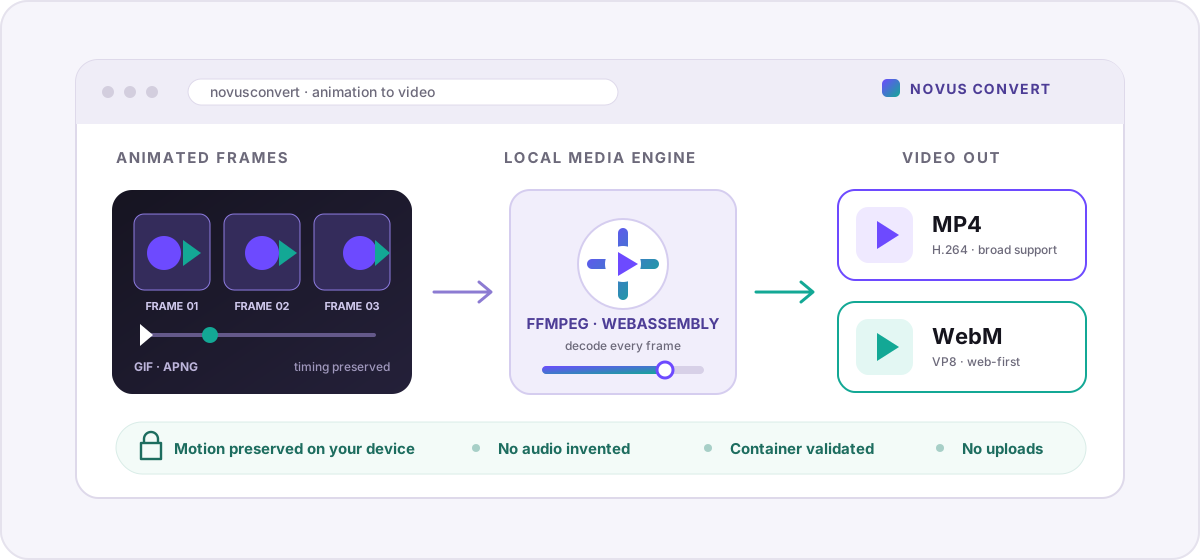
- Choose MP4 or WebM. Both outputs preserve the timing and frame sequence, and both are intentionally video-only because GIF and APNG do not contain an audio track.
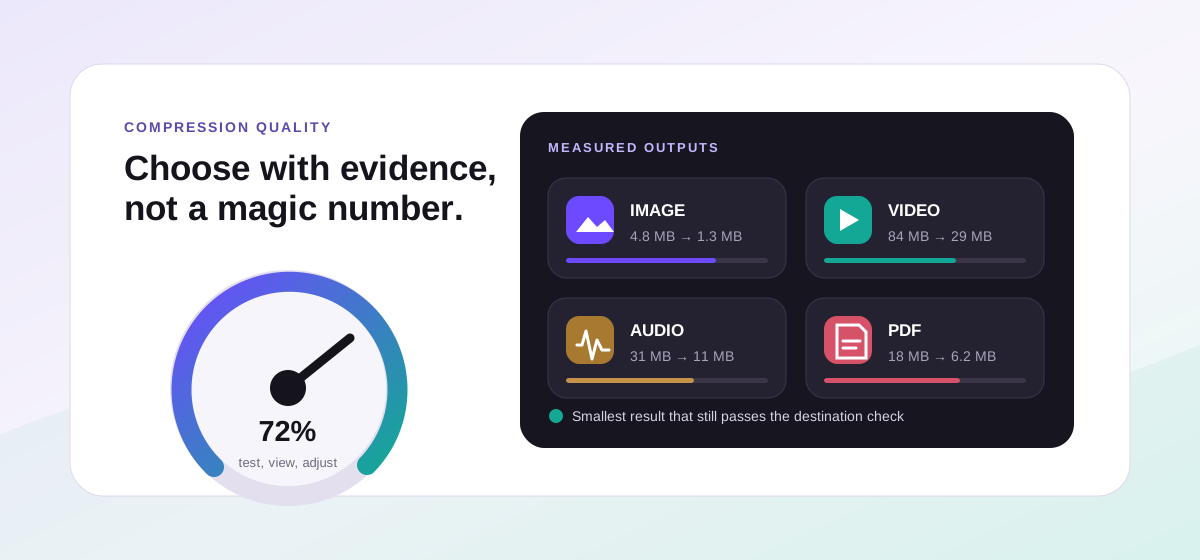
- Set the quality level. Higher settings retain more detail at a larger bitrate; lower settings trade some fine detail for a smaller video.
- Start the conversion. A browser-local FFmpeg engine decodes the animation and encodes the complete sequence, with progress reported back to the file’s row.
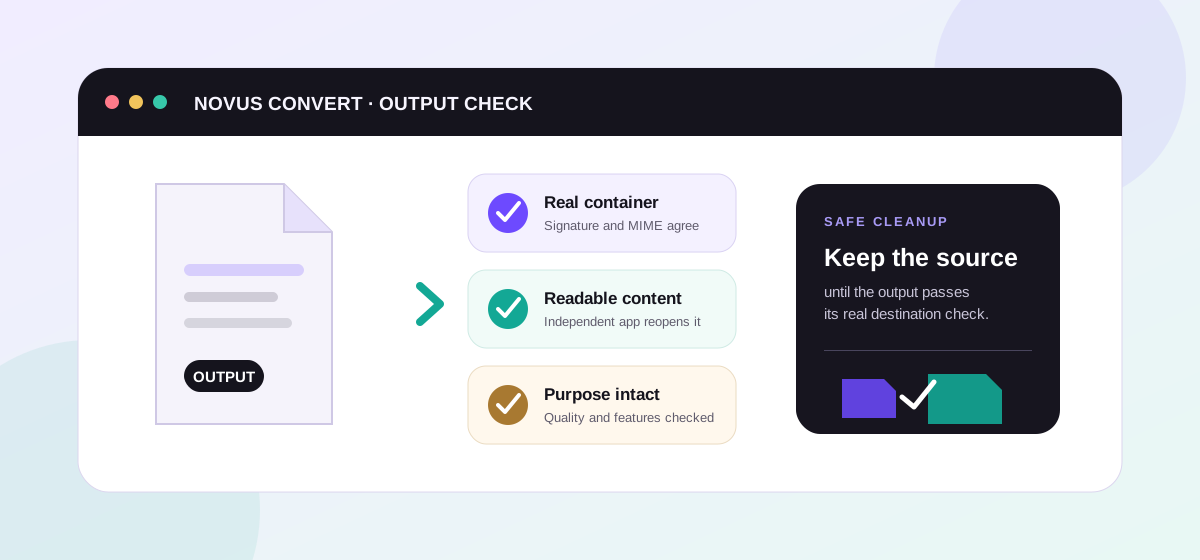
- Download after validation. Novus Convert checks for the real MP4 or WebM container signature before enabling the result, so a failed transcode cannot masquerade as a finished video.
Quality, size, colour, and transparency#
Novus Convert maps the quality control to the encoder rather than pretending every format uses one universal percentage. MP4 is written with H.264 and a quality-oriented constant rate factor; WebM uses VP8 with both a quality target and a bitrate that follows the slider. Lowering quality gives the encoder more freedom to smooth small colour changes and spend fewer bits, while higher quality preserves crisp interface edges and texture. The best setting depends on the subject, so compare motion and text legibility. Not just the final byte count.
Colour can shift slightly because both video paths use the widely compatible YUV 4:2:0 pixel format. Fine coloured edges and tiny type deserve a careful preview. Transparency is the larger boundary: transparent GIF or APNG pixels are flattened for these MP4 and WebM outputs, because the app prioritizes playback compatibility over an alpha-video profile that many players would reject. If the animation must float over arbitrary backgrounds, keep the APNG or prepare a deliberate background colour before conversion.
Make the result work where it is going#
For a website, video does not loop automatically just because the source was a GIF. Use muted, autoplay, loop, and playsinline only when the motion is decorative and does not create an accessibility problem; provide controls when the animation communicates information. For presentations and chat apps, test the finished MP4 on the actual destination, since some services recompress uploads again. A short, tightly cropped animation with a sensible frame rate will survive that second pass better than a large canvas with long idle pauses.
You can also use GIF to WebM or APNG to MP4 when the alternate container fits your destination better. If the output still needs to shrink, the guide to compressing video in the browser explains the same quality trade-offs in more depth. And if you are going in the opposite direction for a short reaction or documentation loop, the app also supports MP4 to GIF with an intentionally bounded frame rate and size.
Troubleshooting
Yes. MP4 and WebM outputs are sent through the media engine as full animations, preserving the frame sequence and timing rather than using the still-image path. JPG, PNG, and WebP outputs are different: those intentionally extract one poster frame. Choose a video destination whenever the motion itself is part of what you need to keep.
H.264 can predict motion and reuse information between frames, while GIF stores a palette-based image sequence with far less efficient temporal compression. Repeated backgrounds and small moving regions therefore compress especially well as video. The exact result depends on dimensions, duration, detail, and quality, so a tiny two-frame icon may not benefit as much as a long screen recording.
No. Novus Convert’s MP4 and WebM paths use a broadly compatible YUV 4:2:0 video output, which does not preserve the alpha channel from a transparent GIF or APNG. Keep APNG when transparency is essential, or place the animation over the intended background colour before conversion so the flattened result looks deliberate.
Frequently asked questions
Will converting a GIF or APNG to video keep every frame?
Yes. MP4 and WebM outputs are sent through the media engine as full animations, preserving the frame sequence and timing rather than using the still-image path. JPG, PNG, and WebP outputs are different: those intentionally extract one poster frame. Choose a video destination whenever the motion itself is part of what you need to keep.
Why is the MP4 often smaller than the original GIF?
H.264 can predict motion and reuse information between frames, while GIF stores a palette-based image sequence with far less efficient temporal compression. Repeated backgrounds and small moving regions therefore compress especially well as video. The exact result depends on dimensions, duration, detail, and quality, so a tiny two-frame icon may not benefit as much as a long screen recording.
Does the converted video keep transparency?
No. Novus Convert’s MP4 and WebM paths use a broadly compatible YUV 4:2:0 video output, which does not preserve the alpha channel from a transparent GIF or APNG. Keep APNG when transparency is essential, or place the animation over the intended background colour before conversion so the flattened result looks deliberate.
Will the output video contain audio?
No. GIF and APNG files have no audio track, so their MP4 and WebM conversions are explicitly encoded as video-only. The converter does not invent silence as a separate track or attempt to combine an unrelated recording. If sound is needed, add it later in a video editor after the visual conversion is complete.
Are animations uploaded to a server for FFmpeg conversion?
No. The FFmpeg engine is compiled to WebAssembly and runs inside your browser tab. The animation is read from your device, decoded, re-encoded, validated, and exposed through a temporary local URL without a file-processing upload. Performance therefore depends on your device, and closing the page removes the temporary workspace.