Convert EPUB, MOBI, and Kindle Ebooks Between Formats Privately
Move your DRM-free ebooks between EPUB, MOBI, and plain formats locally in the browser: reading-order preserved, nothing uploaded.
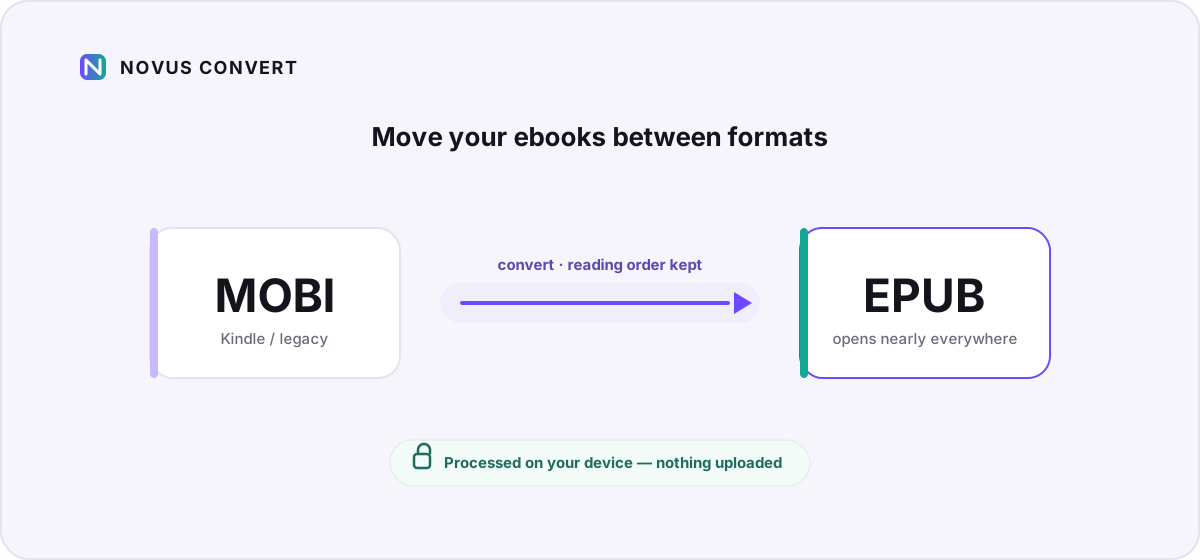
You bought the ebook, or downloaded a public-domain classic, and now it will not open on the device you actually want to read it on. A Mobipocket file only Kindles understand, an EPUB your older reader refuses, a Kindle export you would rather keep as plain text. The words are yours, but the wrapper is wrong. This guide walks through moving DRM-free ebooks between EPUB, MOBI, the Kindle formats, and plain text entirely inside your browser, so the book itself never leaves your device.
EPUB, MOBI, and the Kindle formats in one minute#
EPUB is the open standard almost everything outside Amazon can read. Under the surface an .epub is just a ZIP archive of XHTML chapters plus a manifest whose spine lists them in reading order, which is precisely why that order survives conversion so cleanly. If you want the full anatomy, our EPUB format reference breaks down the container, the spine, and the navigation document.
MOBI and its Kindle descendants, AZW and AZW3, come from a different lineage. Mobipocket packed compressed, HTML-3.2-era markup into a Palm database shell back in 2000; Amazon bought the technology in 2005 and built the first Kindle on top of it. That heritage still shows: MOBI supports only rudimentary styling and no embedded fonts, and Amazon's own Send-to-Kindle service stopped accepting .mobi uploads in 2022. For most people today the practical direction is out of MOBI, not into it.
The common move: MOBI to EPUB#
If you have old Mobipocket or DRM-free Kindle files and a modern Kobo, PocketBook, or Apple Books setup, converting to EPUB is what gets them open again. Our MOBI to EPUB converter reads the Palm-database records, walks the book section by section, and rebuilds each chapter as clean XHTML inside a fresh EPUB 3 container, complete with a generated table of contents and a spine that keeps every chapter in its original sequence.
- Open the MOBI to EPUB route, or drop a mix of ebooks into the general converter and set each file's output individually.
- Add your .mobi, .azw, or .azw3 files. DRM-free books convert; encrypted ones are flagged and skipped with a clear message rather than a broken download.
- Let the local engine parse each title. Larger books take longer, but the time depends on your device, not an upload queue or your connection.
- Download each EPUB once it validates. Novus Convert checks the real EPUB signature before the download button unlocks.
What comes across reliably is the part that matters most: the text and its reading order, chapter by chapter, with headings and paragraph structure intact. What does not always survive is fine visual styling. MOBI stores so little of it to begin with that there is rarely much to carry, and the rebuilt EPUB falls back to your reading app's own typography. Treat the conversion as a faithful move of the words, not a pixel-perfect clone, and keep the original file as your master copy.
When you only want the words: EPUB to text#
Sometimes the goal is not another ebook but the plain content: to search it, quote from it, drop it into notes, or read it in a distraction-free editor. Novus Convert can flatten a book down to plain text, Markdown, HTML, or JSON. The EPUB to text converter reads the spine in order and joins every chapter into one clean file, so the linear flow you would get reading front to back is exactly what lands in the output.
The reason all of this can happen without an account or an upload is architectural, not a marketing promise: there is simply no conversion server in the loop. If you want to see exactly how that works and why it matters for something as personal as your reading history, where your files go walks through it. When you are ready, point your DRM-free books at the converter and get them open on the device you actually use.
Troubleshooting
No. A book still wrapped in Amazon or Adobe DRM is encrypted, and Novus Convert detects that encryption and stops rather than producing a broken file. Only DRM-free copies (public-domain titles, personal documents, or files you are legally entitled to move) can be converted. This is a deliberate limit, not a bug to work around.
Yes. EPUB and the Kindle formats both record a spine that defines the linear order of chapters, and the converter walks that spine from start to finish. The rebuilt EPUB or text file follows the same sequence, so a book reads front to back exactly as it did in the original.
The tool reads MOBI, AZW, and AZW3 as inputs but writes modern outputs (EPUB, plain text, Markdown, HTML, or JSON) rather than producing new Kindle-format files. That reflects where the ecosystem has moved: since 2022, the way to get a book onto a Kindle is Amazon's Send-to-Kindle, which converts an EPUB for you on delivery. So convert to EPUB, then send it.
Frequently asked questions
Can I convert DRM-protected Kindle or Adobe ebooks?
No. A book still wrapped in Amazon or Adobe DRM is encrypted, and Novus Convert detects that encryption and stops rather than producing a broken file. Only DRM-free copies (public-domain titles, personal documents, or files you are legally entitled to move) can be converted. This is a deliberate limit, not a bug to work around.
Will my chapters and reading order stay in the right sequence?
Yes. EPUB and the Kindle formats both record a spine that defines the linear order of chapters, and the converter walks that spine from start to finish. The rebuilt EPUB or text file follows the same sequence, so a book reads front to back exactly as it did in the original.
Can Novus Convert create new MOBI or AZW3 files for my Kindle?
The tool reads MOBI, AZW, and AZW3 as inputs but writes modern outputs (EPUB, plain text, Markdown, HTML, or JSON) rather than producing new Kindle-format files. That reflects where the ecosystem has moved: since 2022, the way to get a book onto a Kindle is Amazon's Send-to-Kindle, which converts an EPUB for you on delivery. So convert to EPUB, then send it.
Is any part of my ebook uploaded during conversion?
No. Every step (parsing the container, decompressing the records, and rebuilding the output) runs in your browser through WebAssembly. Nothing is transmitted to a server, so your library and your reading habits stay entirely on your own device.
What happens to images and custom fonts in the book?
The conversion prioritizes text and reading order, which is what transfers most reliably. Heavy formatting, embedded fonts, and complex media may not carry over, partly because a format like MOBI stores very little styling in the first place. For text-first books such as novels this is a clean move; for image-heavy or fixed-layout titles, keep the original as your master.