Convert 3D Models (STL, OBJ, GLB, STEP) for Printing and the Web
Convert between STL, OBJ, 3MF, GLB, glTF, PLY, and STEP CAD geometry locally with Open CASCADE and mesh tools, ready for 3D printing or web viewers.
A single 3D model can lead a dozen different lives: sliced for a resin printer, dropped into a game engine, spun around inside a product-page viewer, or handed to a machinist as precise engineering geometry. The catch is that each destination expects a different file format, and 3D formats are not casually interchangeable the way image formats mostly are. This guide maps the landscape (STL, OBJ, 3MF, GLB, glTF, PLY, and STEP), and shows how to move between them in your browser, with nothing ever leaving your machine.
Two kinds of 3D file: meshes and CAD solids#
Before picking a format it helps to know which of two families you are dealing with, because converting within a family is easy and converting across it always involves a trade-off. A mesh describes a surface as a bag of flat triangles: STL, OBJ, PLY, glTF, GLB, and 3MF are all mesh formats. A CAD solid instead describes shape mathematically, as exact curved surfaces and the volume they enclose; STEP is the one you will meet most often here. Put simply, a mesh is a faithful approximation of a shape, while a CAD solid is the shape’s true definition. That single distinction drives almost every decision below.
- STL: the lingua franca of 3D printing. Stores nothing but triangles and their facet normals: no units, no color, no materials. Nearly every slicer accepts it.
- OBJ: a widely supported mesh format that adds UV texture coordinates and references an external .mtl file for materials. A comfortable middle ground for art and modeling tools.
- 3MF: the modern successor to STL for printing: a compact XML container that does carry units, color, multiple parts, and print settings.
- PLY: the format 3D scanners love. Handles dense meshes and point clouds and can store per-vertex color, which makes it common for photogrammetry.
- glTF / GLB: the delivery format for the real-time web: physically based materials, textures, and animation in one compact scene. GLB is simply the single-file binary packaging of glTF.
- STEP: the neutral CAD interchange standard (ISO 10303). Exact boundary-representation solids that engineering tools can open, measure, and machine from.
Preparing a model for 3D printing#
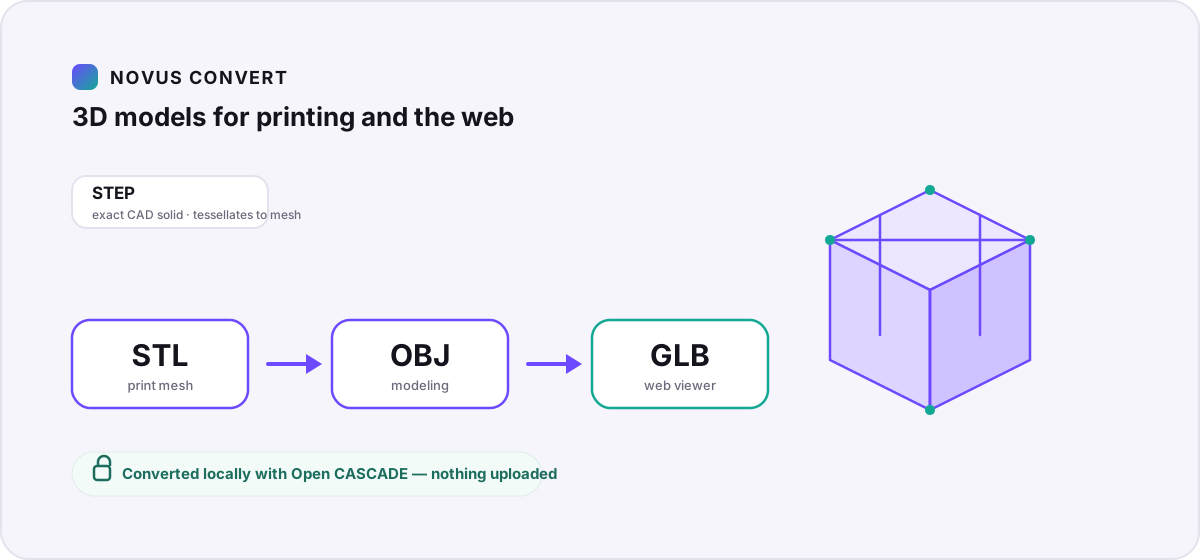
Almost every slicer, the software that turns a model into printer instructions, speaks STL, so an STL is usually where a print job starts. If your geometry began life in CAD as a STEP file, you tessellate it into triangles first; our STEP to STL converter does exactly that, locally, using Open CASCADE: the same B-rep kernel professional CAD tools rely on. Tessellation is a one-way approximation: you trade an exact curved surface for a mesh fine enough that the facets vanish at print resolution. A finer tolerance means a smoother surface and a larger file, so there is a sweet spot to find rather than a single correct setting.
STL’s simplicity is also its limitation: it carries geometry and nothing else, so any color or material you assigned is dropped on export. If you want a printable model that keeps its color for a multi-material or full-color printer, reach for 3MF or an OBJ with its .mtl companion rather than STL. And when you are simply moving between mesh formats: say converting an STL to OBJ so you can open a print file in a modeling app. That step is lossless for the geometry itself, because both sides are just describing the same set of triangles.
Getting a model onto the web#
For anything that will be viewed in a browser (a product configurator, an AR preview, a portfolio piece), glTF and its binary form GLB are the target. Often called “the JPEG of 3D,” glTF was designed for fast loading and physically based rendering, so it keeps textures, materials, and animation together in a single compact package. If your asset is an OBJ exported from a modeling tool, our OBJ to GLB converter bundles the geometry and its materials into one GLB ready to drop into a viewer. If you want the background on the container itself, our GLB format explainer walks through what it does and does not hold.
Web delivery rewards small files, so it is worth being deliberate about mesh density. A model tessellated for a high-resolution print carries far more triangles than a web viewer needs, and every extra triangle is bytes a visitor has to download. When a GLB comes out heavier than you would like, thinning the mesh and optimizing its textures does more than nudging a quality slider, and you can shrink texture-heavy assets further with our local compression tools before you ship them.
Whichever direction you are headed, the workflow is the same: drop your files in, pick an output format, and download once the export is signature-validated. Novus checks that the file really is a valid STL, GLB, or STEP before the button unlocks. You can run a whole batch at once from the general converter, and because there is no upload step, speed depends on your machine rather than your connection. Start with STL to OBJ if you just need to open a print file in a modeling app, and branch out from there.
Troubleshooting
Yes. STEP is exact CAD geometry, and printing needs a mesh, so the converter tessellates the STEP solid into triangles using Open CASCADE. You choose how fine that mesh is: a tighter tolerance gives a smoother surface and a larger file. It is a one-way approximation, which is exactly what a slicer expects.
No. STL stores only triangle geometry: no color, no materials, no units. If you need a printable model that preserves color, export to 3MF, or use OBJ with its .mtl file. For web display, GLB keeps full physically based materials and textures.
You can wrap a mesh into a STEP file, but it stays a faceted solid. It will not become smooth parametric CAD with an editable feature tree. Recovering true analytic surfaces from a mesh is reverse engineering, a much heavier process than a format conversion. If you need editable CAD, keep the original STEP as your master.
Frequently asked questions
Can I convert a STEP file to STL for 3D printing?
Yes. STEP is exact CAD geometry, and printing needs a mesh, so the converter tessellates the STEP solid into triangles using Open CASCADE. You choose how fine that mesh is: a tighter tolerance gives a smoother surface and a larger file. It is a one-way approximation, which is exactly what a slicer expects.
Does converting to STL keep colors and materials?
No. STL stores only triangle geometry: no color, no materials, no units. If you need a printable model that preserves color, export to 3MF, or use OBJ with its .mtl file. For web display, GLB keeps full physically based materials and textures.
Can I turn an STL or OBJ mesh back into a real STEP CAD file?
You can wrap a mesh into a STEP file, but it stays a faceted solid. It will not become smooth parametric CAD with an editable feature tree. Recovering true analytic surfaces from a mesh is reverse engineering, a much heavier process than a format conversion. If you need editable CAD, keep the original STEP as your master.
What is the difference between glTF and GLB?
They are the same format. glTF can be a set of files, a JSON scene plus separate textures and geometry buffers, while GLB packs all of that into a single binary file. GLB is usually the more convenient choice for the web because it is one self-contained asset.
Are my 3D files uploaded anywhere during conversion?
No. Every conversion runs locally in your browser through WebAssembly. Open CASCADE for CAD and mesh tools for STL, OBJ, PLY, and GLB. Your files are read, converted, and signature-validated in your device’s memory, and nothing is sent to a server.