Share a CAD Drawing Without Making Anyone Install CAD
Turn a DXF drawing into an SVG or a PDF in your browser, so a client can open it in anything. Includes the honest limits: what DWG can and cannot do here, and why a drawing is not a model.
A CAD drawing is one of the few files that can stop a project for a day. You send a DXF, the person on the other end does not have a CAD seat, and now there is a call about a file instead of about the work. The fix is not to buy them a licence. It is to send something their computer already opens.
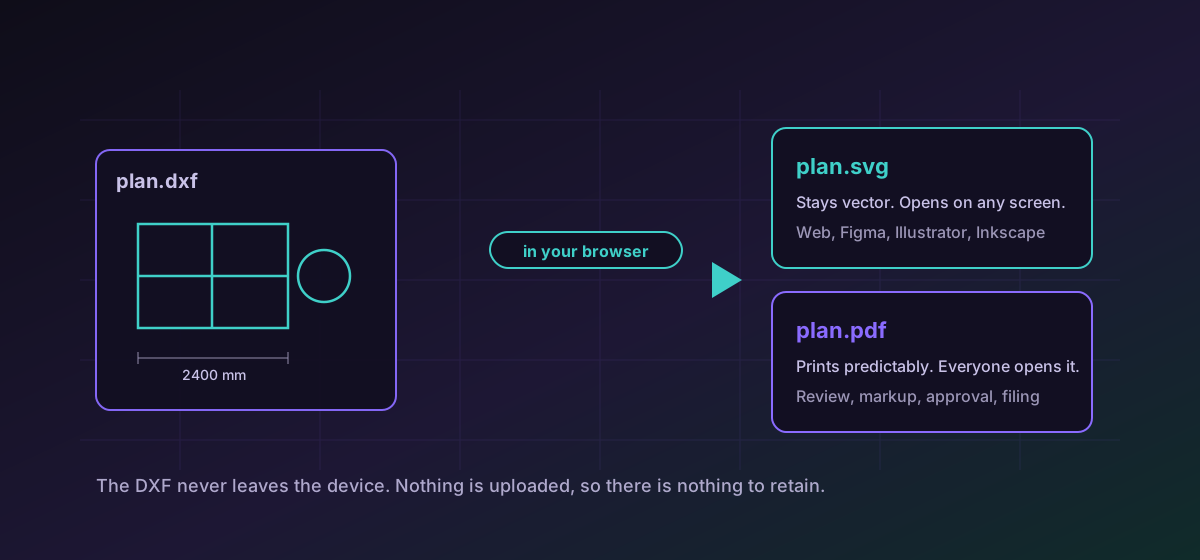
This guide covers turning a DXF into an SVG or a PDF, entirely inside your browser. Nothing is uploaded, which matters more for drawings than for most files: a drawing usually belongs to a client, is often under an NDA, and frequently contains dimensions someone paid to work out.
Start with the honest part: DXF yes, DWG no#
Novus Convert converts DXF and does not convert DWG. That is a real difference and it is worth stating before you try it rather than after. DWG is Autodesk's native, closed, frequently-revised binary format; there is no browser-side library that reads it faithfully enough to promise a correct drawing, so it is documented as a reference format with no conversion route rather than offered and quietly failing. DXF is the interchange format Autodesk publishes for precisely this reason, and every CAD application that writes DWG can also write DXF. The format reference for DXF lists what travels and what does not.
SVG or PDF: pick by what happens to the file next#
These two targets look interchangeable and are not. Choose by the destination, not by preference.
- SVG when the drawing goes on a screen, into a web page, or into a design tool. It stays vector, scales without blurring, and Illustrator, Figma, Inkscape and every browser open it. Convert DXF to SVG.
- PDF when the drawing gets printed, attached to an email, marked up, or filed. It carries page geometry, it prints predictably, and nobody has ever asked what to open a PDF with. Convert DXF to PDF.
If you genuinely do not know, send the PDF. It is the one that never generates a follow-up question.
How to do it#
- Open the conversion route for the target you picked, or drop the file on the converter and choose the output there.
- Add the DXF. It is read in the tab; no upload happens, and you can confirm that in your browser's network panel.
- Convert, then open the result before you send it. This is the step people skip and the only one that catches a problem while it is still cheap to fix.
- Keep the DXF. The converted file is a delivery copy, not a replacement for the drawing.
What a converted drawing is not#
A DXF carries more than shapes. It carries layers, blocks, line types, text styles, paper-space layouts, and dimensions that update when geometry moves. An SVG and a PDF carry a picture of that. The lines will be in the right places; the intelligence behind them does not survive.
In practice that means the output is right for review, approval, printing, quoting and publishing, and wrong as a thing to continue drawing in. If the recipient needs to edit, they need the DXF and an application that understands it.
Check the result properly#
- Open the output and compare it against the drawing, not against your memory of the drawing.
- Look at text first. Text is the most common thing to shift, because it depends on fonts and styles the output cannot carry.
- Check that nothing important lived on a layer that came through invisible or hidden.
- Print one page of the PDF at the size it will actually be printed at, if it is going to be printed.
That last habit generalises. There is a separate guide on verifying conversion results that is worth reading once and applying to everything.
Troubleshooting
It is a DWG, not a DXF. Export a DXF from the application that owns the drawing; renaming the file changes nothing about its contents.
The drawing referenced a style or font the output cannot carry. Convert text to outlines in the source, or accept the substitution and check nothing now overlaps.
Check for content on frozen, off or non-printing layers, and for geometry in a paper-space layout rather than model space. Turn it on in the source and export again.
A drawing with dense hatching becomes a very large number of vector paths. Simplify or remove hatch patterns in a working copy before converting.
Frequently asked questions
Can I convert DWG here?
No. DWG is documented on this site but has no conversion route, because no browser-side library reads Autodesk's closed binary format faithfully enough to be trusted with a drawing. Export a DXF from the application that owns the file and convert that.
Should I send SVG or PDF to a client?
PDF, unless they have asked for something they can edit as artwork. A PDF prints predictably and every device opens it. SVG is the better choice when the drawing is going into a web page or a design tool.
Does the converted file keep my layers?
Not as CAD layers. The output is a picture of the drawing rather than the drawing itself, so layers, blocks, styles and associative dimensions do not survive. Keep the DXF as the master for anything that needs editing.
Can I get a 3D model from a DXF?
No. A DXF describes a 2D drawing, and the third dimension is not present in the file to recover. Solids and surfaces travel as STEP, IGES or a mesh format, and those have their own routes.
Is the drawing uploaded anywhere?
No. The conversion runs entirely in your browser. The file is never transmitted, so there is nothing stored, queued or retained on any server.