How to Batch Convert Mixed Files in One Private Browser Queue
Convert images, documents, media, archives, and other formats together with per-file outputs, validated downloads, and no uploads.
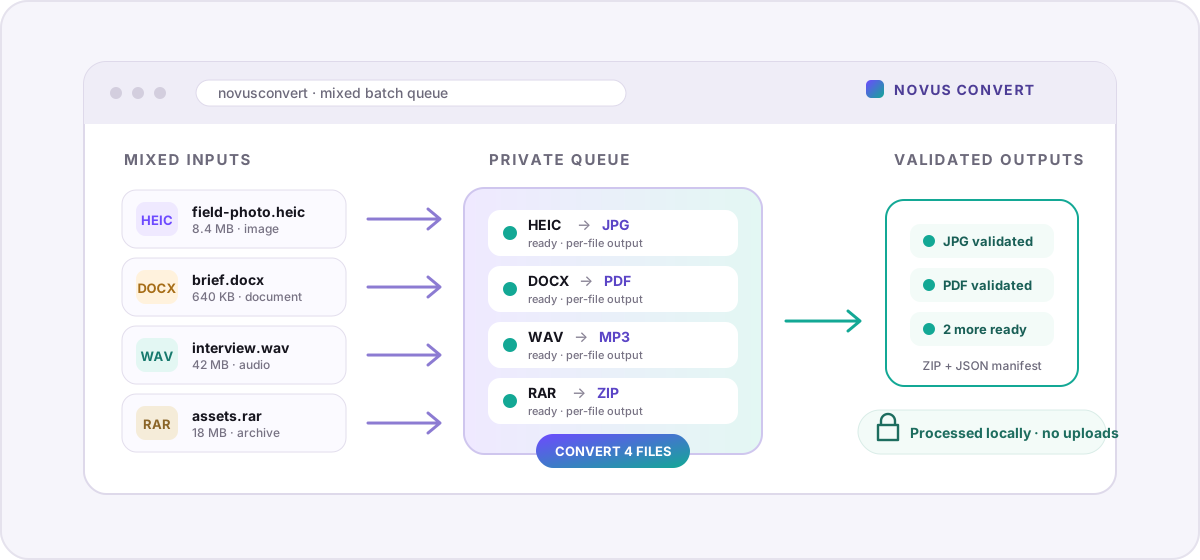
Real folders are messy. A client handoff can contain phone photos, a Word brief, two spreadsheets, a voice note, and a ZIP of brand assets; a school submission may mix a PDF, a presentation, and images that all need different destinations. Opening a different converter for every extension turns a five-minute cleanup into a trail of tabs. Novus Convert’s batch queue is built for that ordinary kind of mess: add supported files together, choose the right output for each row, process them locally, and collect the validated results without uploading the source set anywhere.
A mixed batch is not one conversion repeated#
Many batch tools assume every input should become the same thing. That is useful when a folder of PNG screenshots all needs WebP, but it falls apart when the inputs are genuinely mixed. The general Novus Convert queue treats each file as its own job. A HEIC photo can become JPG, a DOCX can become PDF, a WAV recording can become MP3, and a RAR can become ZIP while they remain together in one list. The output menu for each row is generated from the app’s live capability registry, so it only enables destinations that have a working local engine behind them.
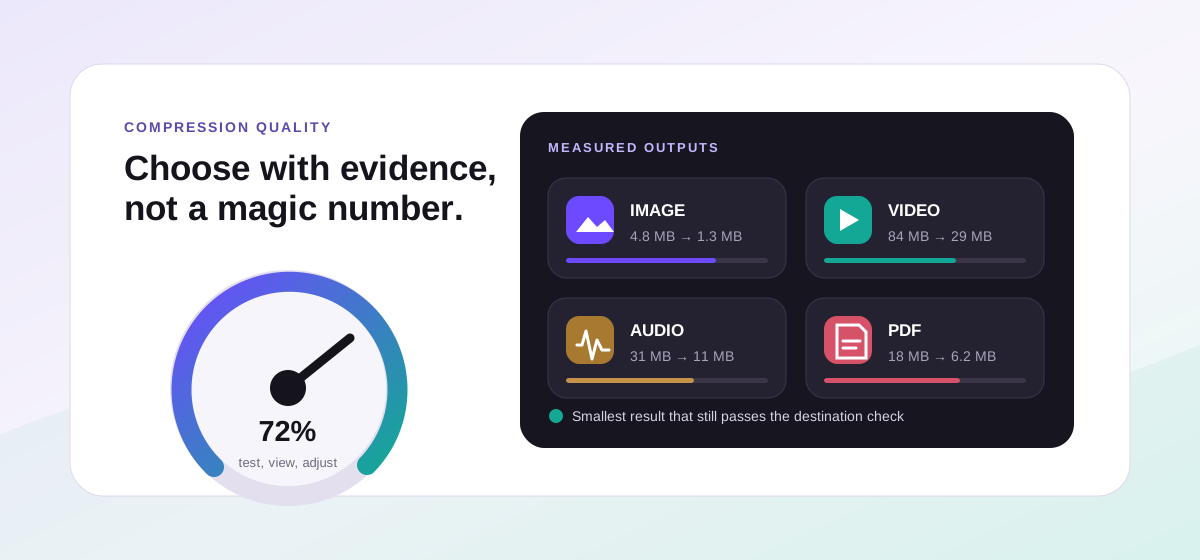
That per-file choice is the important distinction. The queue is shared, but the conversion rules are not blurred together. Image quality can influence a raster export, an archive must be unpacked and repackaged, a spreadsheet has to preserve or flatten its sheets according to the target, and media needs a codec that the chosen container can actually carry. Novus Convert routes every row to the appropriate browser-side engine, then brings the results back to the same queue with independent progress, errors, retry state, and downloads.
The five-step batch workflow#
- Open the general file converter and drag in the files you want to prepare. You can add more later, so there is no need to assemble the perfect folder first.
- Review each row. The input badge, filename, size, and initial output make it easy to catch the wrong file before processing begins.
- Choose an output for every item. Compatible targets are enabled and unavailable targets stay visible but disabled, which makes the boundary of the current release clear.
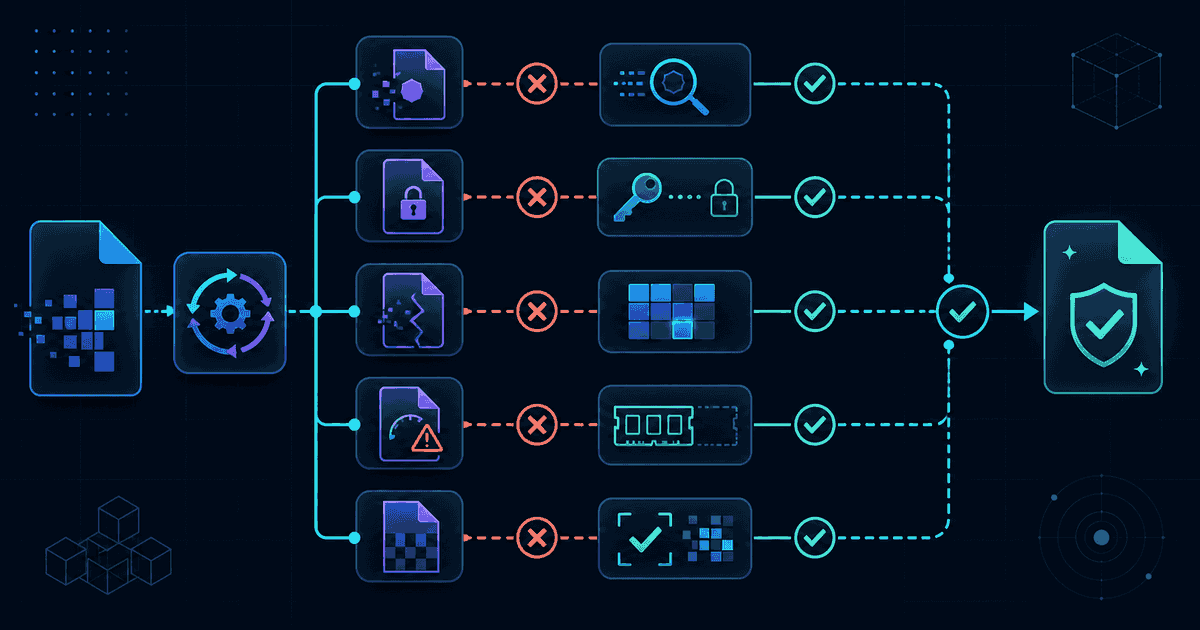
- Select Convert files. Jobs run through their own validation and conversion path, with progress and a readable error attached to the affected row instead of one failure cancelling the whole batch.
- Download successful files individually, or select completed results and package them into one ZIP with a conversion manifest.
Why validation happens before download#
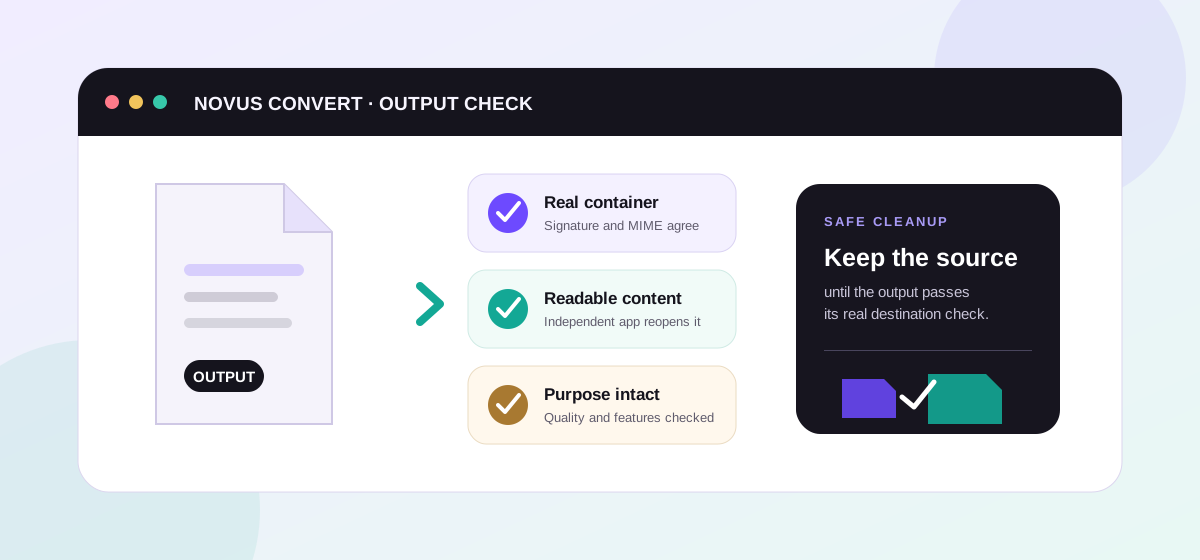
A renamed extension is not a converted file, and a process that reaches 100 percent has not necessarily produced a healthy result. Before Novus Convert enables a download, it checks the output as the format it claims to be. Depending on the target, that can mean a known file signature, a readable package structure, a playable media container, or a safe SVG. The queue then calculates a SHA-256 digest and shows part of it beside the completed row. This does not certify the meaning of your content, but it does catch the empty, truncated, or wrongly wrapped exports that basic online tools can hand back with a reassuring filename.
The combined download adds another useful layer. Selected results are rechecked, given collision-safe names, and placed in a ZIP with a JSON manifest. That manifest records the source name, input format, output name, output format, media type, byte size, checksum, and validation state for each item. It is a small audit trail for a handoff: the recipient can see what changed, and duplicate filenames do not silently overwrite one another inside the package.
Plan around the limits of your own device#
Local processing replaces server queues with your device’s CPU and memory, which is usually a privacy win and sometimes a practical constraint. A few documents and images are light work; several long videos, giant camera RAW files, or deeply compressed archives demand much more memory. Novus Convert applies input-size, decoded-pixel, archive-entry, and expanded-data limits before dangerous jobs can overwhelm the tab. The queue also processes conversions deliberately instead of launching every heavy engine at once, keeping mixed batches more predictable on laptops and phones.
For a broad view of everything the queue can currently produce, browse the live conversion directory. If you want the privacy model in more detail, where your files go follows a source file through browser memory, temporary result URLs, and cleanup. The practical rule is simpler: group jobs by what you need to accomplish, choose each destination deliberately, and let one private queue replace the pile of single-purpose tabs.
Troubleshooting
Yes. Each queue row has its own output selector, populated from the formats the app can actually produce from that input. A photo, document, recording, and archive can therefore go to four different destinations in the same run. The shared queue organizes the work; it does not force one output across unrelated file types.
The failure stays attached to that file’s row with a readable error. Other supported jobs can still finish and be downloaded, and you can change the failed row’s output or try it again without rebuilding the entire batch. This isolation matters for mixed inputs because a damaged archive should not discard a successfully converted image or document.
No. Each item remains its own validated output. Download selected packages those separate files into a ZIP and adds a JSON manifest describing their input and output formats, sizes, checksums, and validation state. It is a convenient delivery bundle, not a merge that changes the contents of the individual results.
Frequently asked questions
Can every file in a batch use a different output format?
Yes. Each queue row has its own output selector, populated from the formats the app can actually produce from that input. A photo, document, recording, and archive can therefore go to four different destinations in the same run. The shared queue organizes the work; it does not force one output across unrelated file types.
What happens if one file fails during a batch conversion?
The failure stays attached to that file’s row with a readable error. Other supported jobs can still finish and be downloaded, and you can change the failed row’s output or try it again without rebuilding the entire batch. This isolation matters for mixed inputs because a damaged archive should not discard a successfully converted image or document.
Does Download selected create one large converted file?
No. Each item remains its own validated output. Download selected packages those separate files into a ZIP and adds a JSON manifest describing their input and output formats, sizes, checksums, and validation state. It is a convenient delivery bundle, not a merge that changes the contents of the individual results.
Are mixed batch files uploaded or stored in an account?
No. Supported conversions read the files directly in your browser and build temporary outputs in local memory. There is no file-processing upload endpoint or cloud project folder, and no account is required. Result links are temporary object URLs that disappear when the job is cleared or the page is closed.
Why are some output choices disabled for a file?
The menu shows the broader format library but only enables targets backed by a real conversion path for that specific input. A disabled option means the current release cannot honestly produce and validate that combination in the browser. You can use the conversion directory to find nearby supported routes instead of discovering the limitation after processing starts.