CSV, JSON, and Excel: Convert Structured Data Safely in the Browser
Move tabular data between CSV, JSON, TSV, and Excel/ODS locally, no uploading spreadsheets full of sensitive rows to a stranger’s server.
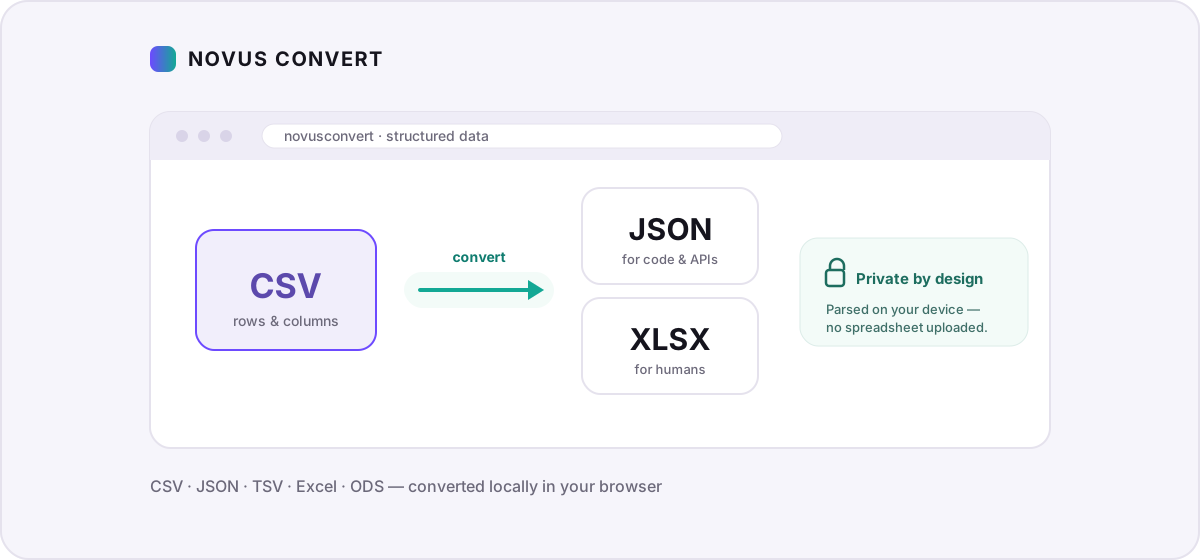
Spreadsheets are where the sensitive material tends to live: customer lists, salary tables, patient rows, transaction logs. So it is worth a moment’s pause before you drag one onto a random website that promises to turn your CSV into an Excel file. This guide covers moving tabular data between CSV, JSON, TSV, and Excel or ODS, and doing all of it inside your browser, so the rows never leave your machine.
The formats, and what each one is actually for#
CSV (comma-separated values) is the lingua franca of tabular data: a plain-text file where each line is a row and commas separate the columns. TSV is the same idea with tabs as the separator, which neatly sidesteps data that already contains commas. JSON is structured and typed. It can nest objects and arrays, which is what APIs and code expect. Excel’s XLSX and the open-standard ODS are full workbooks: multiple sheets, formulas, number formatting, and styling wrapped inside a zip container.
- Reach for CSV or TSV when you need something every tool on earth can open: databases, R, pandas, and any spreadsheet app read them without fuss.
- Reach for JSON when the destination is code or an API, or when your rows carry nested structure that a flat table simply cannot express.
- Reach for XLSX or ODS when a person needs to read the result: multiple tabs, frozen headers, and typed cells make a workbook far friendlier than raw text.
Convert CSV to JSON, and JSON back to CSV#
The most common request is turning a CSV into JSON so a script or API can consume it. On the CSV to JSON converter, each row becomes a JSON object keyed by the header row, and the file as a whole becomes an array of those objects. Going the other direction, an array of flat objects collapses cleanly back into rows and columns.
- Open the CSV to JSON route, or drop your file into the general batch converter.
- Drop your .csv or .tsv file onto the page. Nothing uploads. The parser reads the bytes locally.
- Confirm the output format. Each file has its own picker, so you can send one file to JSON and another to XLSX in the same batch.
- Let the local engine detect the delimiter, read the header row, and serialize the result.
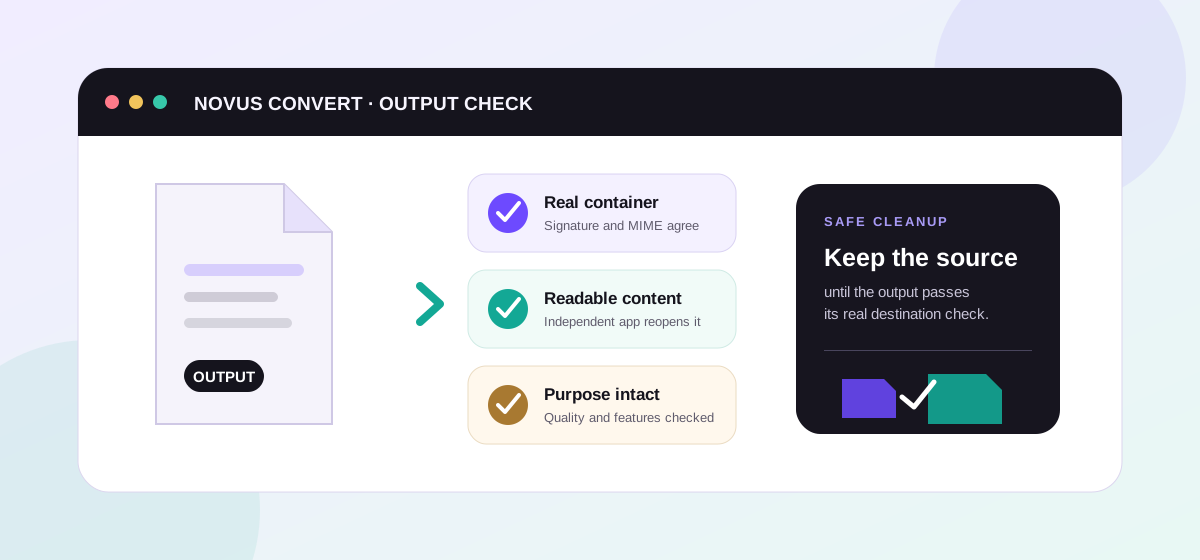
- Download the validated file once its real signature checks out.
One honest caveat: JSON can be arbitrarily nested, but a CSV is flat. Converting deeply nested JSON into a single table means flattening it. Array fields and sub-objects have to be joined into a string or spread across generated columns. If your JSON is a clean array of flat records, the round trip is lossless. If it is a nested tree, decide how you want it flattened before you rely on the CSV as the source of truth.
CSV to Excel, and Excel back to CSV#
When a colleague wants something they can double-click in Excel, use CSV to XLSX to wrap your rows into a proper workbook with a typed sheet. When you receive an .xlsx and need plain text for a database import or a script, XLSX to CSV pulls the cells back out. Both directions run locally, and neither one phones home.
Two things trip people up when plain text becomes typed cells and back. First, encoding: save and expect UTF-8 so accented names and non-Latin scripts survive intact, a stray byte-order mark or a legacy Latin-1 file is where garbled characters come from. Second, values that look like numbers but should not be treated as numbers: postal codes with leading zeros, long identifiers that spreadsheet apps rewrite in scientific notation, and dates in ambiguous day-month order. When those columns matter, keeping the data as JSON, where a string stays a string, avoids the guesswork entirely.
If you want the deeper reference on delimiters, quoting rules, and where the format came from, our CSV format page lays it out. For the wider picture on why in-browser tools beat upload-first converters, browse the rest of the Novus Convert blog.
Troubleshooting
It depends on how the tool works. Any converter that uploads your file exposes those rows (names, emails, salaries, whatever they contain) to a remote server and its retention policy. A browser-based converter like Novus Convert parses and rewrites the file in your own device’s memory, so nothing is transmitted and there is nothing to leak.
CSV cannot store formulas, so each formula cell is written out as its last-calculated value. If you need the formulas preserved, keep the original .xlsx as your master and use the CSV only as a plain-text export for imports and scripts.
Yes, but CSV has no concept of tabs, so the workbook is exported one sheet at a time. Each sheet becomes its own flat file. If you need everything in a single document, XLSX or ODS is the right target rather than CSV.
Frequently asked questions
Is it safe to convert a spreadsheet full of personal data online?
It depends on how the tool works. Any converter that uploads your file exposes those rows (names, emails, salaries, whatever they contain) to a remote server and its retention policy. A browser-based converter like Novus Convert parses and rewrites the file in your own device’s memory, so nothing is transmitted and there is nothing to leak.
What happens to formulas when I convert Excel to CSV?
CSV cannot store formulas, so each formula cell is written out as its last-calculated value. If you need the formulas preserved, keep the original .xlsx as your master and use the CSV only as a plain-text export for imports and scripts.
Can I convert a multi-sheet Excel workbook to CSV?
Yes, but CSV has no concept of tabs, so the workbook is exported one sheet at a time. Each sheet becomes its own flat file. If you need everything in a single document, XLSX or ODS is the right target rather than CSV.
Why did my ZIP codes or long IDs get mangled?
Spreadsheet apps often reinterpret text that looks numeric: dropping leading zeros from postal codes or rewriting long IDs in scientific notation. Format those columns as text before converting, or keep the data as JSON, where a string stays a string and is never re-typed.
What is the difference between CSV and TSV?
Only the separator. CSV uses commas between columns; TSV uses tab characters. TSV is handy when your data already contains commas, since it avoids the extra quoting and escaping that commas would otherwise require.